If your site returns a 500 error or a blank page immediately after activating RunCache, you can troubleshoot the problem even if you cannot access wp-admin.
Start by restoring access to the site, then investigate the error that caused the problem.
Recover the Site
Before you start, make sure you can access the WordPress files using SSH, SFTP, or a file manager and can edit the wp-config.php. If you are using the commands below, first navigate to the root directory of your WordPress installation.
Test the site after each step and stop when it begins loading normally again.
Remove the page cache drop-in. This alone brings back most sites, because it is the file WordPress loads before anything else.
mv wp-content/advanced-cache.php wp-content/advanced-cache.php.runcache-backup
ls -l wp-content/advanced-cache.php.runcache-backup
If the command succeeds,
lsshould display the renamed backup file. Reload the site. If it loads normally, stop here and continue to the diagnostic section below.If the
mvcommand returns an error, check the file path and permissions before continuing.Open
wp-config.phpand look for aWP_CACHEdefinition added by RunCache. If present, remove it:define('WP_CACHE', true); // Added by RunCacheRemove the object cache drop-in, if present.
mv wp-content/object-cache.php wp-content/object-cache.php.runcache-backup
ls -l wp-content/object-cache.php.runcache-backup
If
object-cache.phpexists and the command succeeds, reload the site. If the file does not exist, continue to the next step.Deactivate RunCache without using wp-admin by renaming its plugin directory:
mv wp-content/plugins/runcache wp-content/plugins/runcache.runcache-backup
ls -ld wp-content/plugins/runcache.runcache-backup
If the renamed directory is listed successfully, reload the site.
If WP-CLI is available, you can deactivate RunCache instead:
wp plugin deactivate runcacheRemove the Redis block from
wp-config.php, everything between these two markers, inclusive:/* RunCache Redis Configuration START */ /* RunCache Redis Configuration END */- On Apache or LiteSpeed, remove the
.htaccessblock, everything between# BEGIN RunCacheand# END RunCache, or between# BEGIN RunCache LiteSpeedand# END RunCache LiteSpeed. A copy of the original file may exist at.htaccess.runcache-original.bak.
Identify the Underlying Error
An HTTP 500 response does not identify the underlying error. To capture WordPress errors, add the following lines to wp-config.php above the /* That's all, stop editing! */ line:
define('WP_DEBUG', true);
define('WP_DEBUG_LOG', true);
define('WP_DEBUG_DISPLAY', false);
Reload the affected page, then check wp-content/debug.log. When you have finished troubleshooting, remove these debugging definitions or set WP_DEBUG to false.
Check the PHP error log as well as wp-content/debug.log. Errors that occur before WordPress has fully loaded may appear in the PHP error log instead.
What RunCache Changes During Activation
When you activate RunCache, it makes the following changes before you configure any additional settings. For commands you can use to verify these changes, see What activation changes.
- writes
define('WP_CACHE', true);intowp-config.php - copies its drop-in to
wp-content/advanced-cache.php, backing up an unrecognized existing one toadvanced-cache-backup-YYYY-MM-DD-HHMMSS.php - generates
wp-content/cache/runcache/config.php - enables the PHP file cache, which is the default type on first install
- flushes rewrite rules
Two possible causes of a 500 error are a wp-config.php file that RunCache cannot write to or a drop-in that cannot find the files it needs. The drop-in locates the plugin by a fixed fallback path, WP_CONTENT_DIR . '/plugins/runcache/'because the plugin’s own constants are not defined when it runs. If your plugin directory has any other name, that path is wrong, and the drop-in fails on every request.
WordPress Installed in a Subdirectory
Non-standard WordPress directory structures, including Composer-based or Bedrock-style installations, may require extra configuration.
If your WordPress core files are installed in a subdirectory, review the RunCache documentation for subdirectory and Bedrock installations before reactivating the plugin.
Check the RunCache Version and Build
Before contacting RunCloud Support, record the RunCache plugin version and build information from the affected installation:
cat wp-content/plugins/runcache/build-info.txt
grep -i 'Version:' wp-content/plugins/runcache/runcache.php
The first command displays the build information, while the second displays the plugin version, for example:
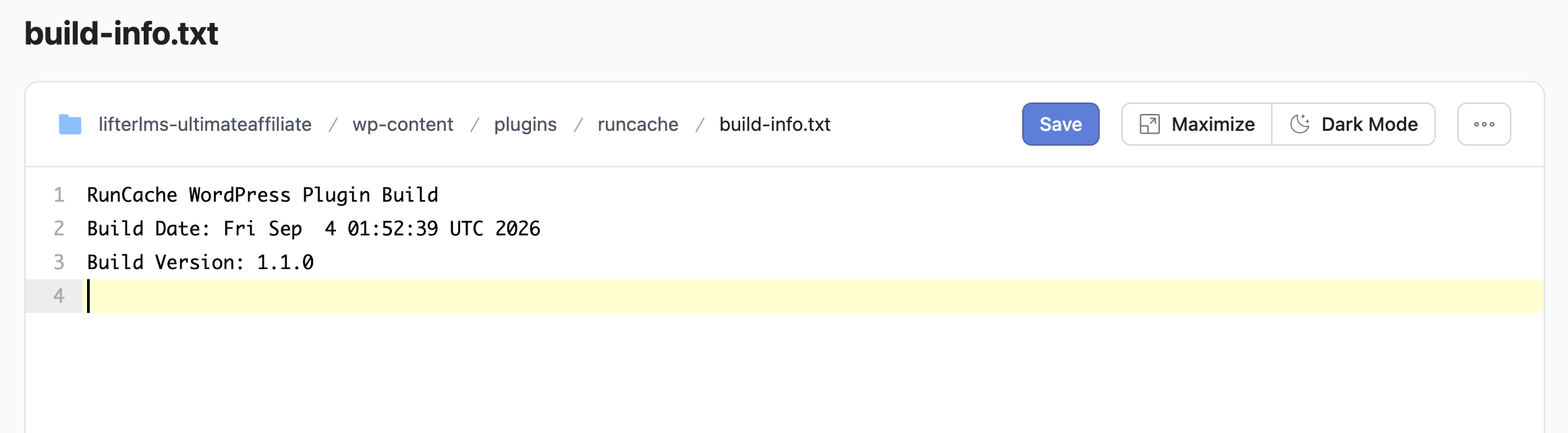
If build-info.txt is present, include its contents along with the plugin version when contacting RunCloud Support.