This page in RunCache gives you granular control over RunCache’s automatic cache purging behavior. By configuring these rules, you can ensure that your website’s content remains fresh and up-to-date for your visitors without requiring you to manually clear the cache after making changes.
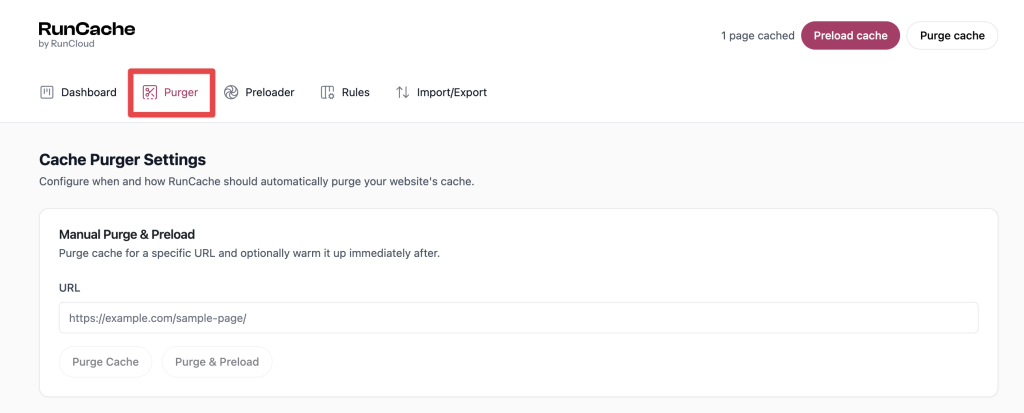
Purge All Cache
These options trigger a complete purge of the entire site cache. This is necessary when a change affects site-wide elements like your theme, plugins, or navigation.
- When the custom permalink structure is changed
This rule purges the entire cache if you modify your site’s URL structure in WordPress settings. Since this changes every link on your site, a full purge is required to prevent broken links. - When switching to a different theme
Activating a new theme fundamentally alters your site’s design and layout. This option clears all cached pages to ensure the new design is applied correctly across the entire website. - When the site title/tagline / WordPress address/site address is changed
This purges the full cache when you update core site settings. These elements often appear in global headers or footers, so a full purge is necessary to reflect the change on every page. - When the customizer is saved/updated (Appearance-Customize)
Changes made in the WordPress Customizer often affect site-wide elements such as headers, footers, fonts, and colors. This setting clears the cache to apply these global design changes immediately. - When a theme/plugin is updated
Updating a theme or plugin can introduce new features, styles, or scripts. This option purges the entire cache to prevent conflicts and ensure the updated code is loaded correctly. - When a plugin is activated/deactivated
Activating or deactivating a plugin can significantly alter your site’s functionality or appearance. This rule clears the cache so that the plugin’s effects can be correctly applied or removed globally. - When a nav menu is updated
Since navigation menus typically appear on every page of your site, this setting purges the entire cache whenever a menu is created, updated, or deleted. - When a sidebar widget is updated
This rule clears the whole cache when a widget is added, removed, or reordered. This is useful because sidebars are often present on many pages throughout the site. - When a widget parameter is updated
This option purges the entire cache when you save changes to an individual widget’s settings. This ensures the updated widget content is visible across all pages where it appears.
Purge Homepage
These rules specifically target your site’s homepage cache, ensuring that your most important page always shows the latest content.
- When a post/page/CPT is published/modified
This purges the homepage cache whenever new content is published or an existing piece is updated. It is necessary to ensure that your latest posts or news appear on the front page immediately. - When a published post/page/CPT is trashed
This rule purges the homepage, removing links or excerpts of content you have just deleted. This removes the cached homepage so the next request can reflect the current content.

Purge Post/Page/CPT
These settings manage the cache for individual posts, pages, and custom post types (CPT).
- When a post/page/CPT is published/modified/trashed
This clears the cache for the specific post or page being edited or deleted. This removes the cached version so subsequent requests can display the updated content. - When a comment is approved/unapproved/trashed
This option purges the cache for a specific post when its comments are moderated. This allows the new comment (or its removal) to be displayed on the page right away.

Purge Archives
The Purge Archives settings control whether RunCache clears related archive pages when you publish, update, or trash content.
These settings are separate from Purge Homepage and Purge Post/Page/CPT. Disabling archive purging does not stop RunCache from clearing the individual post or homepage when those separate settings are enabled.
- When a post/page/CPT is published/modified/trashed
This is the main archive purge setting. When enabled, RunCache can clear the related post type, taxonomy, and author archives according to the settings below. - Purge post type archive page
Clears the archive page for the affected post type. For standard WordPress posts, the post type archive is normally the site homepage, which may already be cleared by the Purge Homepage settings. This setting is more significant for custom post types with their own archive pages. - Purge category/tag/taxonomy pages
Clears the archive for each category, tag, or custom taxonomy term assigned to the affected post. For example, a post assigned to eight tags can trigger eight tag archive purges. Purging an archive path also removes cached paginated pages beneath that path. - Purge author page
Clears the author archive when one of that author’s posts changes. This setting is disabled by default, so enable it if your site uses public author archive pages.

How Archive Purge Settings Work
Changes to the Purge Archives settings apply to future publish, update, and trash events. Saving these settings does not immediately clear archive pages that are already cached.
When the main archive purge setting is disabled, the related archive settings are hidden. Their existing values are retained and become active again if the main setting is re-enabled.
If an archive page still shows outdated content after publishing or updating content, check that the relevant archive purge setting is enabled. If the page was already stale before you changed the setting, purge it manually or perform a full cache purge.
Archive Purging When Content Is Trashed
RunCache handles trash events differently from publish and update events.
For publish and update events, the related archive settings apply only when the main archive purge setting is enabled.
When a post is trashed, RunCache can still apply the individual post type, taxonomy, author, and feed archive settings even if the main archive purge setting is disabled.
If you disable archive purging to reduce the number of purge operations during publishing, remember that trashing content can still trigger the individual archive purge settings.
Archive Pages Without a Separate Purge Setting
RunCache does not provide separate Purge Archives settings for date archives, search results, or paginated archive pages.
Date archives are not cleared by these settings.
Paginated archive pages are removed when their parent archive path is purged.
Search results are not cached because the s query parameter is excluded from caching.
RSS Feed Purging
RunCache also stores an RSS feed purge setting, but there is no control for it in the Purger interface.
If an RSS feed shows outdated content, you can manually purge the feed URL or perform a full cache purge.
To purge a specific feed URL with WP-CLI, run:
wp runcache purge --target-url=https://example.com/feed/When to Change the Archive Purge Defaults
The default settings work for most sites, but you may want to change them in some cases:
- If your site uses author archive pages, enable Purge author page so those archives are cleared when related posts change.
- If publishing content triggers a large number of taxonomy purges, consider disabling taxonomy archive purging. Those archive pages may then remain stale until their cached entries expire or you purge them manually.
- If an RSS feed shows outdated content, manually purge the feed URL or perform a full cache purge.
Custom Purge URL
- Enable custom purge URL path.
This option lets you specify additional URLs or paths to purge during general cache-clearing events. This is useful for related pages that aren’t automatically detected, such as a custom sitemap page.

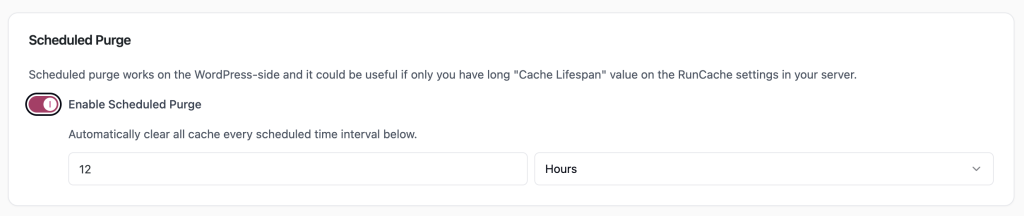
Scheduled Purge
- Enable Scheduled Purge
This feature automatically clears the entire site cache at a regular interval that you define. It is most useful for sites with a very long cache lifespan to ensure all content is periodically refreshed.
Debug Options
- Enable HTML Footprint in HTML
This is a troubleshooting tool that adds an HTML comment at the bottom of your site’s source code. The comment confirms if a page was served from the cache and when it was created, which is helpful for debugging. This option should be disabled on a live production site.

If you have any other questions or need help, please feel free to get in touch with our 24/7 support team. We’re here to help!