Author: Alex Panagis

  • RunCloud 2025 Year in Review

    RunCloud 2025 Year in Review

    Welcome to the RunCloud 2025 Year in Review. 

    First of all, Happy New Year! Here’s to 2026! 🎉🎆👏

    As we write this, we’re wrapping up the first week of 2026. And, as is the trendy thing to say this year – and every year before – largely because it tends to be the case: it’s been quite a year. 

    If you’re here for the first time, here’s a bit about us: 

    • RunCloud is a server management platform that makes it easy to run production-grade infrastructure on your favorite cloud providers (including AWS, UpCloud, Vultr, and more). Trusted from startup to enterprise – from your favorite indie hackers and WordPress agencies all the way through to world-class hosting companies. 
    • Our mission is to make server management so simple & reliable that it fades into the background. We believe you should spend your energy scaling your business, shipping code, and serving your customers, rather than fighting with the command line or worrying about uptime, performance, and the cost of using managed providers eating into your margins. 

    But we couldn’t do this alone. We build the tools, but you build the web. 

    To our amazing community of developers, agencies, and business owners: Thank you, RunCloud users. Thank you for trusting us with your mission-critical applications, for your honest feedback, and for pushing us to keep shipping. 

    Let’s take a moment to celebrate what a year it’s been & look ahead to 2026.

    2025 By The Numbers

    This year, RunCloud celebrated its 8th anniversary. 

    🌍 Serving 120 countries, powering nearly 100k servers & 400k+ apps

    🕵️ 38 product updates shipped. 

    📈 Over 200,000 web app deployments: from personal blogs to high-traffic ecommerce stores, you built & launched it all.

    RunCloud Around the World

    We often talk about “The Cloud,” but real servers live in real places, managed by real people. RunCloud isn’t just present in Silicon Valley or the usual major tech hubs; we are powering businesses in 138 different territories around the globe.

    It’s always striking to see RunCloud adopted in unexpected places. RunCloud is truly global, and this year we saw active servers managed from some of the most remote and fascinating corners of the world, including:

    • Turks and Caicos Islands
    • Christmas Islands
    • Isle of Man
    • Mongolia
    • Faroe Islands

    Whether you are coding from a high-rise in New York or a remote office in the Faroe Islands, we are proud to be the engine behind your infrastructure.

    This Year in Support & Service

    Good infrastructure should stay out of your way, and software should be easy to use. 

    A big part of this is having great, well-written, human-written documentation. 
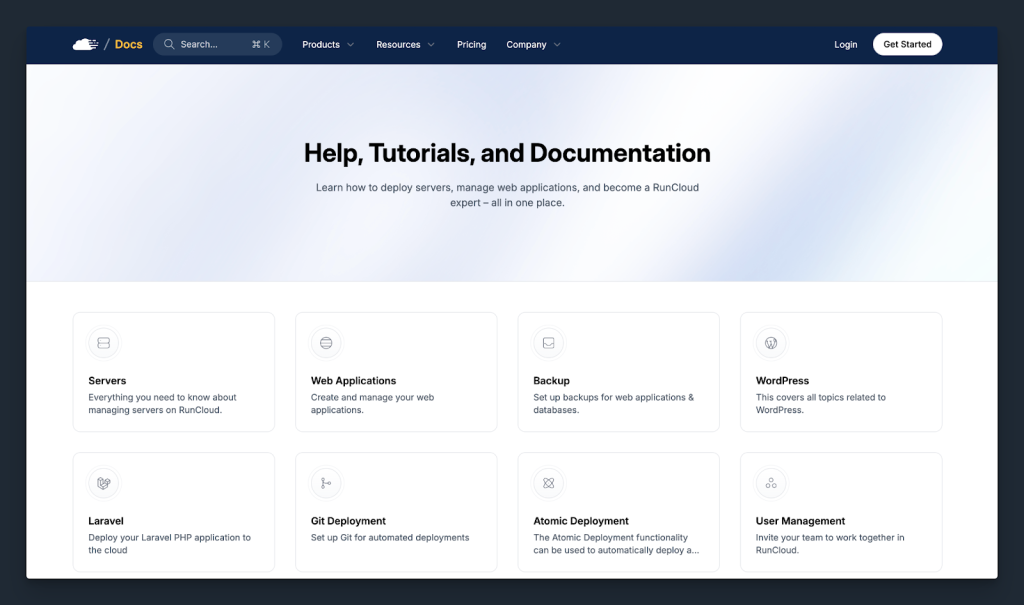
    But when something does go wrong, being able to rely on human support matters. We’ve invested heavily in our support team this year to ensure that when you reach out, we are there to provide a prompt response.

    • Lightning Fast Responses: We respect your time. In 2025, our average first-response time during business hours was under 20 minutes. 
    • Customer Happiness: Speed means nothing without quality. We are incredibly proud that over 90% of customers rated their support experience as “Extremely Satisfied.”

    Feedback from RunCloud users drives our roadmap, and your satisfaction is our top priority. Thank you for trusting us with your business. While we want to celebrate where we are, we also recognize that our work here is never done & as such, it goes without saying that we retain our commitment to continuous improvement in support. 

    This Year in Product

    In 2025, we shipped 38 product updates, ranging from major new features to critical platform improvements. While some of these were entirely new feature releases, others were necessary maintenance and platform enhancements that don’t always get headlines, but quietly make RunCloud work better for you every day.

    Auto Healing

    Server stability is non-negotiable; however, services can sometimes crash due to traffic spikes or memory leaks. In the past, this would have created panic and required a manual restart. This year, we introduced Auto Healing to take that stress off your shoulders.

    This feature actively monitors your server’s essential services. If a service goes down, RunCloud doesn’t just alert you; it attempts to restart the service automatically to get your site(s) back online instantly. 

    Learn more: Understanding the RunCloud Auto Healing Feature

    MySQL Support

    For years, MariaDB has been the default standard on our platform, but we know that developers love choice. RunCloud users asked for it, and in 2025, we delivered full MySQL Support. RunCloud users can now choose the database engine that best fits their specific application requirements when provisioning a server.

    We didn’t stop at just adding the engine, though. We wanted to make the transition as seamless as possible. We introduced a dedicated MySQL/MariaDB Migration Tool that allows you to switch your existing databases between the two engines effortlessly. Whether you are migrating legacy projects or optimizing for specific performance needs, the choice is now 100% yours.

    Learn more: How to migrate between MySQL and MariaDB

    HTTP/3 Support

    Speed is the currency of the web, and this year we gave your sites a significant performance boost at no extra cost. We rolled out full support for HTTP/3. This protocol reduces latency and enhances connection stability, particularly for users on mobile networks.
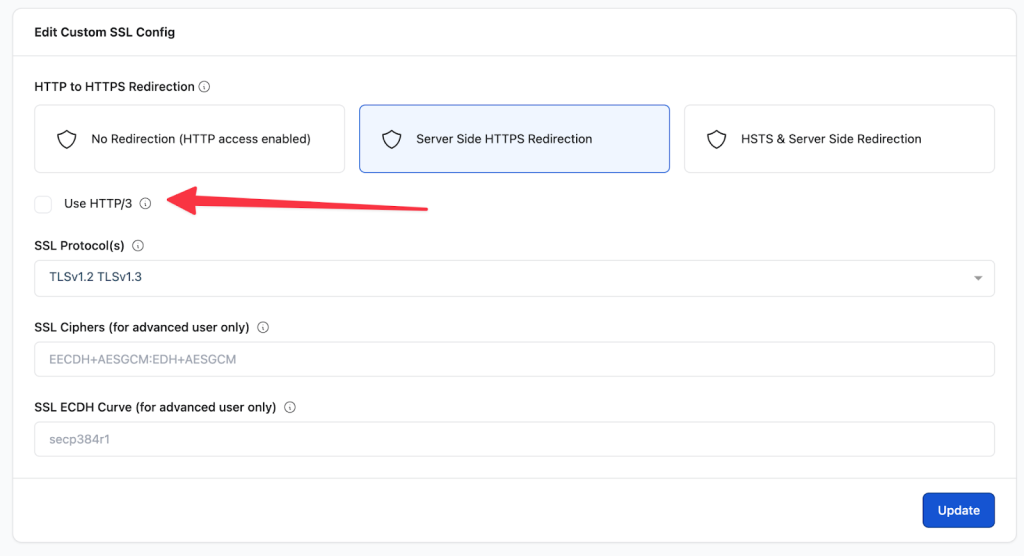
    By opening the necessary firewall ports and optimizing the server stack, we enabled your sites to serve content more quickly and securely, with users having no need to upgrade hardware to get it. It’s a free performance upgrade that ensures your applications remain on the cutting edge of web standards.

    Maintenance Mode

    Sometimes you need to take a site offline to perform critical updates or fix a bug, but you never want your visitors to see a broken page or a raw error log. This year, we simplified this workflow with our new Maintenance Mode feature.

    With a single click, you can now make your website temporarily unavailable to the public. It is the cleanest way to handle downtime during deployments or modifications. Once your work is done, simply toggle it off, and your site is back in business instantly.
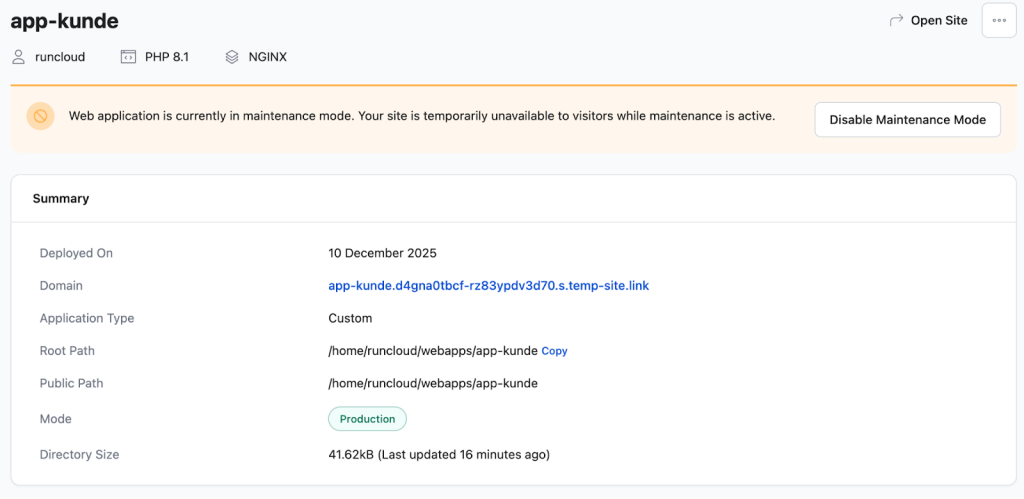
    Learn more: How to Enable Maintenance Mode for a Web Application

    Community & Events

    2025 was a big year for community connection and real-world engagement. RunCloud appeared not just online, but also in places where users build, learn, and collaborate.

    WordCamp Pune 2025
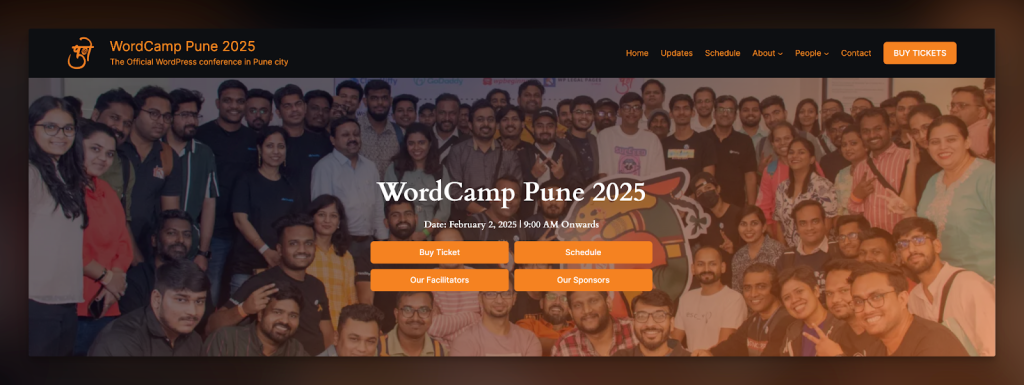
    In February, RunCloud was a Silver Sponsor at WordCamp Pune 2025, joining developers and WordPress enthusiasts in India. Teams shared product insights, answered questions in person, and met users face-to-face.

    WordCamp Europe 2025 🇨🇭

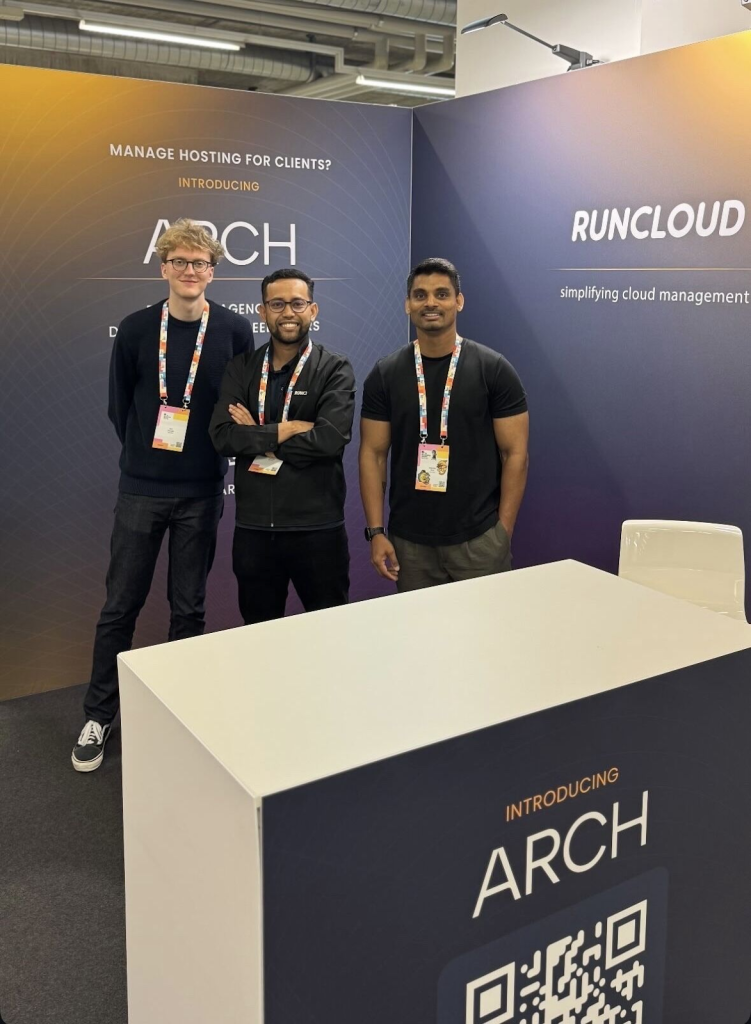
    In June, Arif Tukiman (CEO) and Rajendra Zore (CMO & Product Strategist) travelled to attend WordCamp Europe, where they were supported by a “semi-local” (me!). 

    Although I wasn’t raised in Switzerland, I am half-Swiss (on my mother’s side) & conveniently from the German part, which made it all the more enjoyable to meet some of RunCloud’s German and Swiss users at the conference. 

    WordCamp Europe 2025 was a particularly special one for us as we announced the Arch by RunCloud project, opening up our waitlist (join here).

    Being able to meet a lot of our users, including ones who very recently migrated over, as well as other active members of the community who were just hearing about how they can run their own infrastructure with RunCloud, truly never gets old. 

    Over the next year, we hope to start gradually inviting existing users as a part of a phased rollout, starting with select high-usage accounts, followed by those who have registered for early access, and eventually opening up broader access (so make sure to get on the waitlist sooner rather than later 🙌).
    WordCamp Malaysia 2025
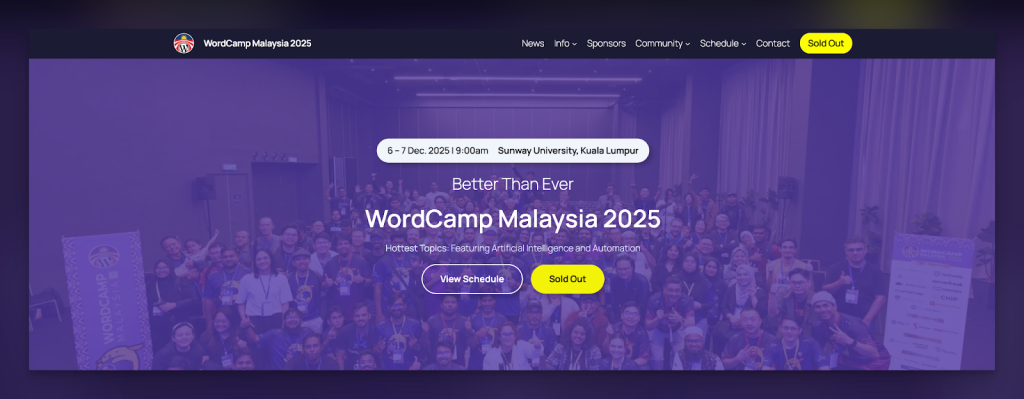
    Later in the year, RunCloud supported WordCamp Malaysia 2025 as a Gold Sponsor. At the event in Petaling Jaya, the team connected with Southeast Asian developers, shared best practices, and talked through features like RunCache with attendees.

    RunCloud’s presence at these events helped users learn about server management workflows directly from the team. It also strengthened relationships with local WordPress communities, from workshop sessions to casual chats at booths.

    Beyond sponsorships, local meetups and ambassador-led gatherings continued throughout the year, bringing RunCloud users together for learning and collaboration.

    Looking Forward – Our Vision for 2026

    We couldn’t wrap up the year without giving you a glimpse of what’s to come. While we’re proud of what we achieved in 2025, we are even more excited about what we are building for 2026. We have two major announcements to share, and we believe they will change the way you work.

    Announcement #1 – Introducing RunCache

    For years, you have trusted RunCloud to manage the server-side performance of your applications. Now, we are taking that expertise directly into your WordPress dashboard.

    We are thrilled to announce RunCache, our very own, all-in-one WordPress caching plugin.We built RunCache to solve a simple problem: making WordPress fast shouldn’t require a degree in systems engineering. With RunCache, you can enable a full suite of performance layers (Object Caching, PHP Caching, NGINX Caching, and CDN Caching) all with a single click.
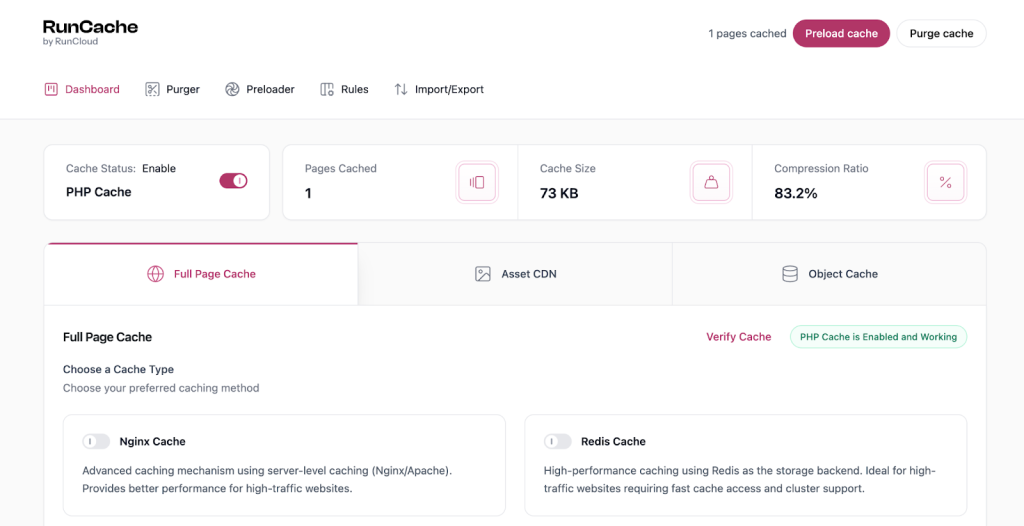
    And the best part is that RunCache will be completely free & cloud-agnostic. 

    We believe that high performance should be accessible to everyone. Unlike other proprietary solutions that lock you into a specific hosting environment, RunCache works on any server, with any cloud provider. Whether you are on RunCloud or not, you can use RunCache to supercharge your site.

    Fast, free, and coming soon to a WordPress dashboard near you. What’s not to love?

    Announcement #2 – Introducing Arch

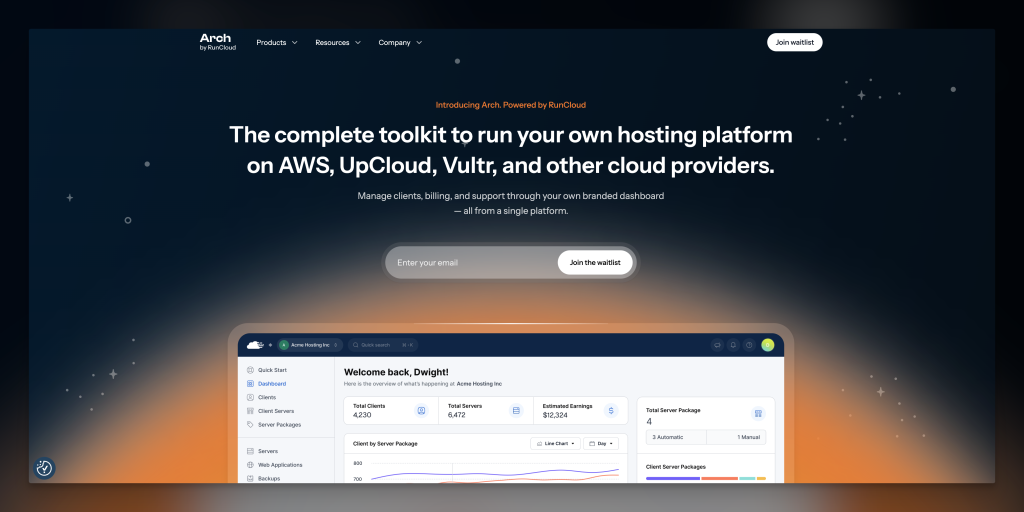
    Our engineering team is currently focused on refactoring RunCloud’s architecture to prepare for Arch, so we aren’t yet ready to reveal everything. Join the waitlist for Arch today.

    This year, we plan to start gradually inviting existing users as a part of a phased rollout, starting with select high-usage accounts, followed by those who have registered for early access, and eventually opening up broader access (so make sure to get on the waitlist sooner rather than later). 
    Wrapping Up

    As we close the chapter on 2025, we are filled with immense gratitude. The numbers and milestones matter, but what matters most is you – the developers, agencies, and business owners who trust us with your infrastructure every single day.

    2025 was an amazing year of strengthening foundations and scaling up, but we promise that 2026 is going to be even better. With tools like RunCache and Arch on the horizon, we are gearing up to make your workflow faster, simpler, and more powerful than ever before.

    Thank you for being part of our journey, for your feedback, and for helping us build the web.

    Ready to get back to work?
    Login to RunCloud | Create a New Server

    Not part of the RunCloud family yet?
    What are you waiting for? Join the community that is powering the web’s fastest-growing businesses. Create your RunCloud account today.
  • Effortless n8n Hosting with RunCloud, Docker, and NGINX

    Effortless n8n Hosting with RunCloud, Docker, and NGINX

    n8n is an open-source automation platform that connects apps and services to streamline repetitive tasks – all under your control.

    If you want full control over your setup, self-hosting n8n is the way to go. But managing your own infrastructure doesn’t have to be complicated.

    In this guide, you’ll learn how to deploy n8n using Docker, configure it securely with NGINX and SSL, and use RunCloud to handle the heavy lifting – from server setup to backups.

    Let’s get started.

    Why Host n8n with RunCloud & Docker?

    Why Use RunCloud and Docker to Host n8n?

    • Full control – Keep your data and workflows on your own terms.
    • Simplified management – RunCloud handles your domain, SSL, and NGINX config.
    • Efficient setup – Docker keeps n8n isolated and updates easy.
    • Multi-app support – Run multiple apps on one server with ease.

    Let’s explore how to get your n8n instance running smoothly with RunCloud.

    Step-by-Step Instructions to Install n8n

    Follow these steps to create your own n8n instance on your server:

    You’ll need:

    • A cloud server (e.g., DigitalOcean, Vultr) connected to RunCloud
    • A domain or subdomain pointed to your server IP

    If you use RunCloud’s Cloudflare integration, DNS setup takes just a few clicks during web app creation.

    Step 1: Create a New Web Application in RunCloud

    RunCloud makes it very easy to manage domain names, SSL certificates, and backups for your web applications. But before we can configure all that, you will need to create a dedicated web application for n8n:

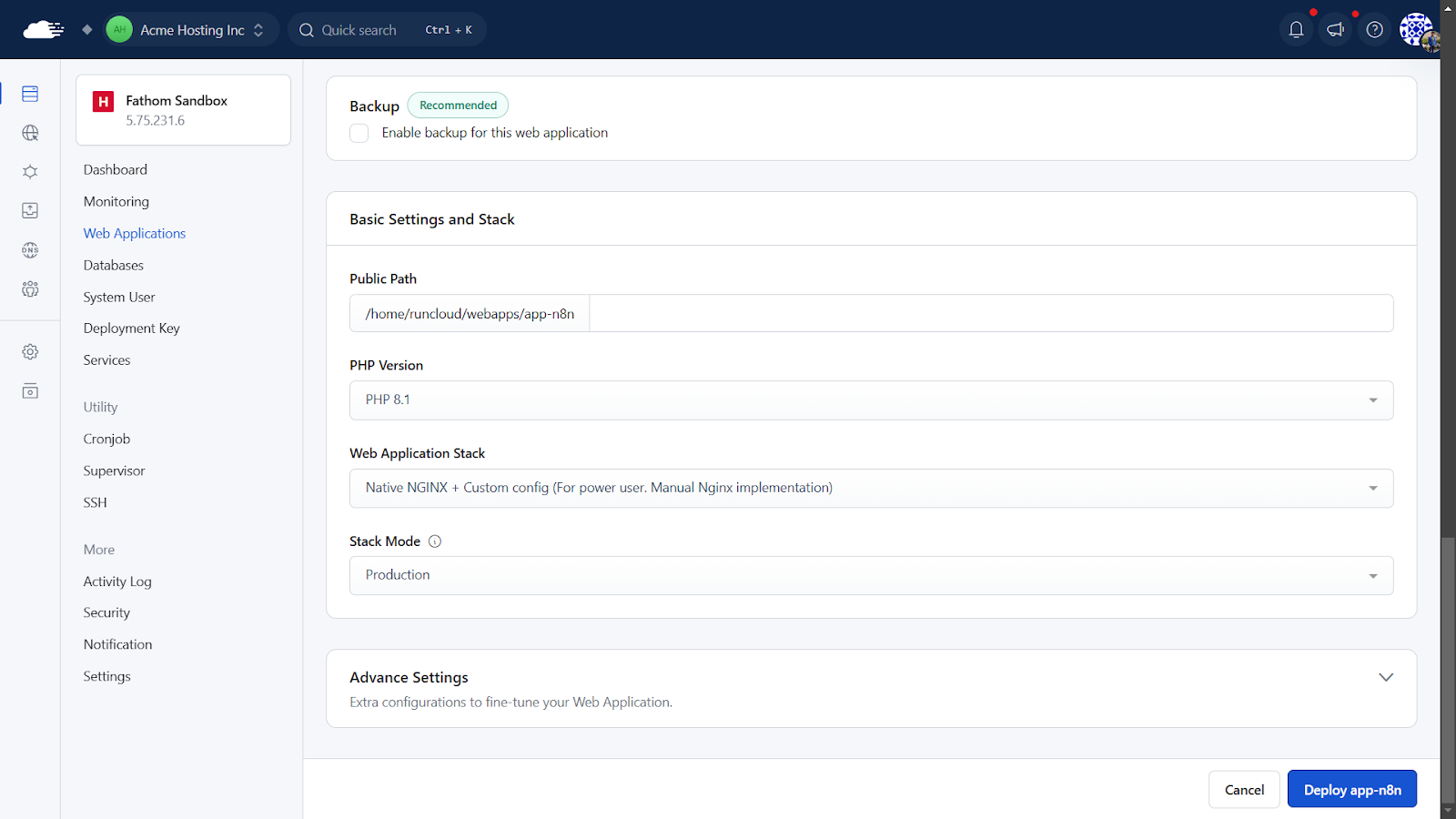
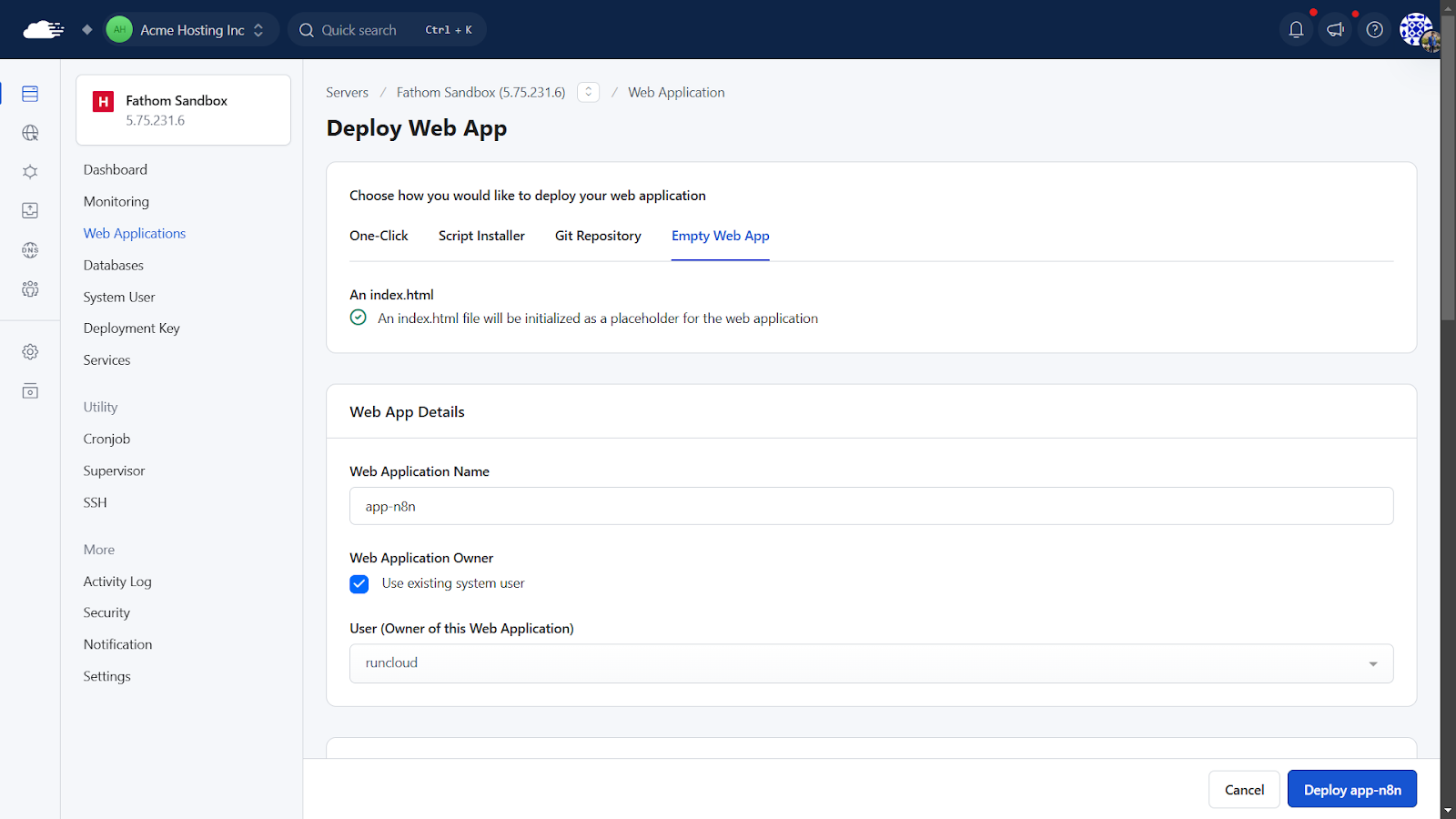
    1. Log in to your RunCloud dashboard, navigate to “Web Applications“, and click “Create Web Application“.
    2. Application Name: Give it a descriptive name, e.g., “n8n-app”.
    3. Web Application Owner: Select your system user. For maximum security, it is recommended that you create a new user account for each web application.
    4. Domain Name: Enter the custom domain you’ll use for n8n (e.g., n8n.example.com). If you are using RunCloud’s Cloudflare integration, you can easily update necessary DNS records with a single click.
    1. PHP Version: You can select any PHP version; n8n itself doesn’t use it directly as it’s containerized, but RunCloud requires one to be set. The default is fine.
    2. Web Application Stack: For this setting, select “Native NGINX + custom config” as we will be using this as a proxy to connect to the n8n Docker container.
    3. After configuring all settings, click “Create Web Application” to deploy the web application.
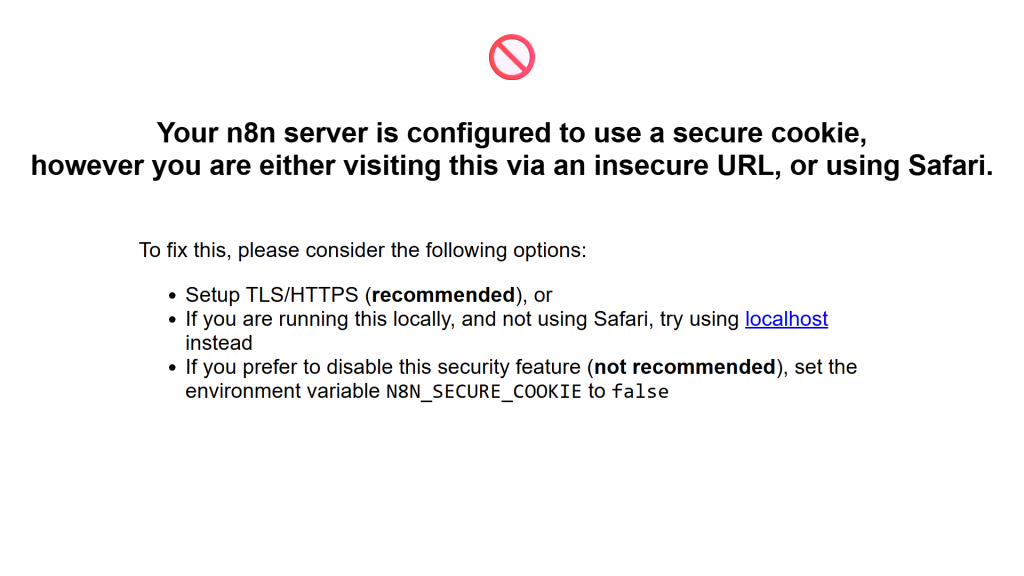
    1. SSL/TLS: Once the app is created, go to its SSL/TLS section in RunCloud. Use Let’s Encrypt to get a free SSL certificate. If you skip this step, you will get the following error later in the process:

    Step 2: SSH into Your Server and Navigate to Your Web App Directory

    After creating the web application, connect to your server via SSH. If you don’t know how to do this, read our documentation on How to Connect to Your Server via SSH to learn more.

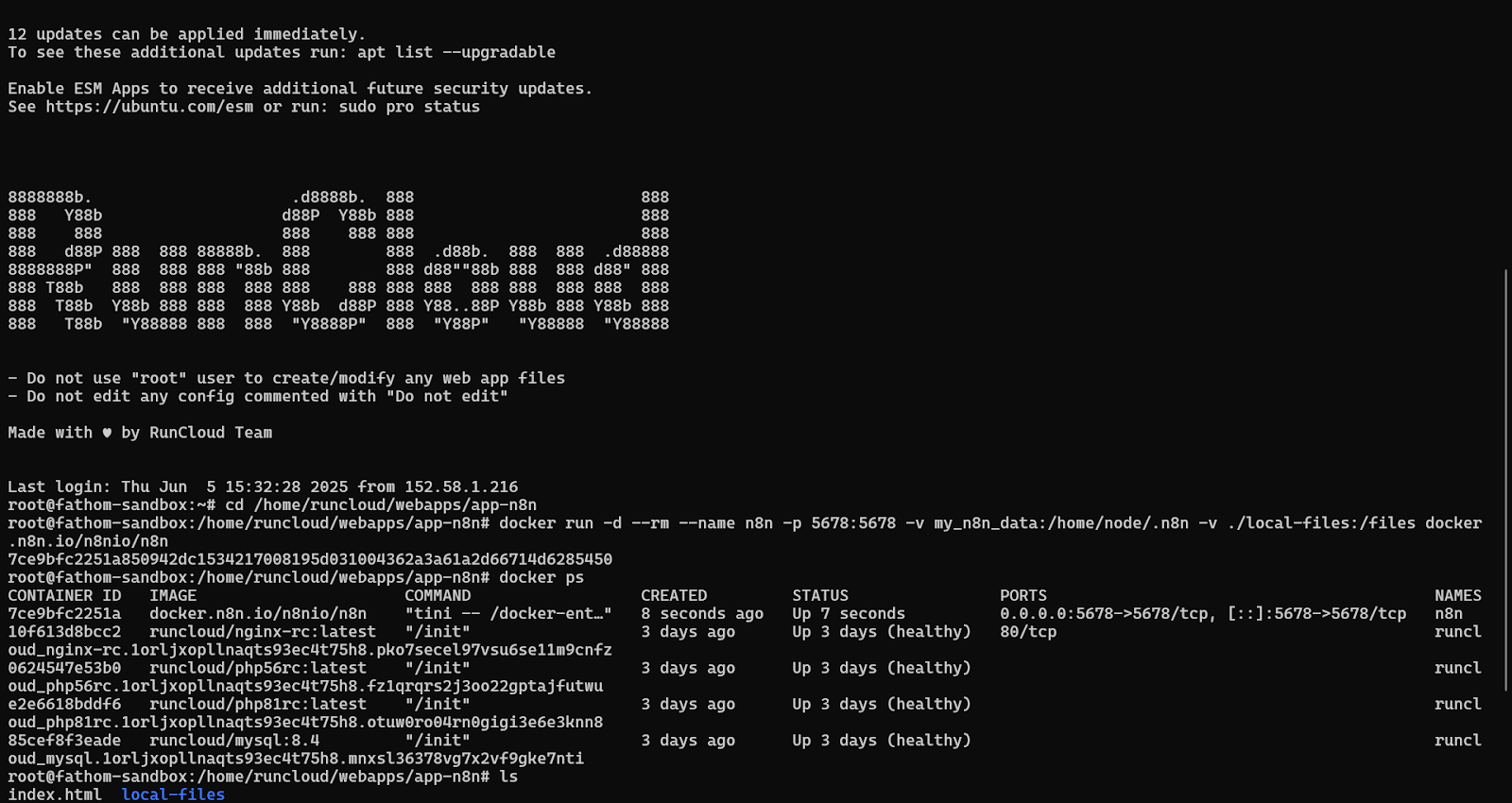
    After connecting to your server, navigate to the web application’s root directory you just created in RunCloud using the ‘cd’ command. Make sure to replace the path in the following command with the actual root path of your web application:

    cd /home/runcloud/webapps/<app-name>

    Step 3: Create the local-files Directory

    In this directory, you can create a new directory that will be mapped to the Docker container. This will contain the web application data of your n8n instance. Execute the following command to create this directory:

    mkdir n8n_data
    sudo chown -R 1000:1000 n8n_data

    This will store your n8n data and assign the correct ownership permissions so that the data is accessible from the Docker container.

    Step 4: Create the Docker Application

    Now, let’s define and launch our n8n application using Docker. You have two ways to approach this. For a very quick start, you could use the following Docker run command:

    docker run -d --rm \
      --name n8n \
      -p 5678:5678 \
      -e GENERIC_TIMEZONE="UTC" \
      -e TZ="UTC" \
      -e N8N_HOST="app-n8n.EXAMPLE.com" \
      -e N8N_EDITOR_BASE_URL="https://app-n8n.EXAMPLE.com/" \
      -e N8N_PROTOCOL="https" \
      -e N8N_ENFORCE_SETTINGS_FILE_PERMISSIONS=true \
      -e N8N_RUNNERS_ENABLED=true \
      -e N8N_LICENSE_ACTIVATION_KEY="EXAMPLE" \
      -e N8N_EMAIL_MODE="smtp" \
      -e N8N_SMTP_HOST="smtp.EXAMPLE.com" \
      -e N8N_SMTP_PORT="25" \
      -e N8N_SMTP_USER="EXAMPLE" \
      -e N8N_SMTP_PASS="EXAMPLE" \
      -e N8N_SMTP_SENDER="N8N <n8n@EXAMPLE.com>" \
      -e N8N_SMTP_SSL=true \
      -e N8N_SMTP_STARTTLS=true \
      -v ./n8n_data:/home/node/.n8n \
      docker.n8n.io/n8nio/n8n

    Once you run the above command, Docker will download and run the required containers for your application.

    For more flexibility (custom env settings, time zones), use Docker Compose instead. See n8n’s Docker documentation for advanced setups.

    Step 5: Configure NGINX Reverse Proxy via RunCloud

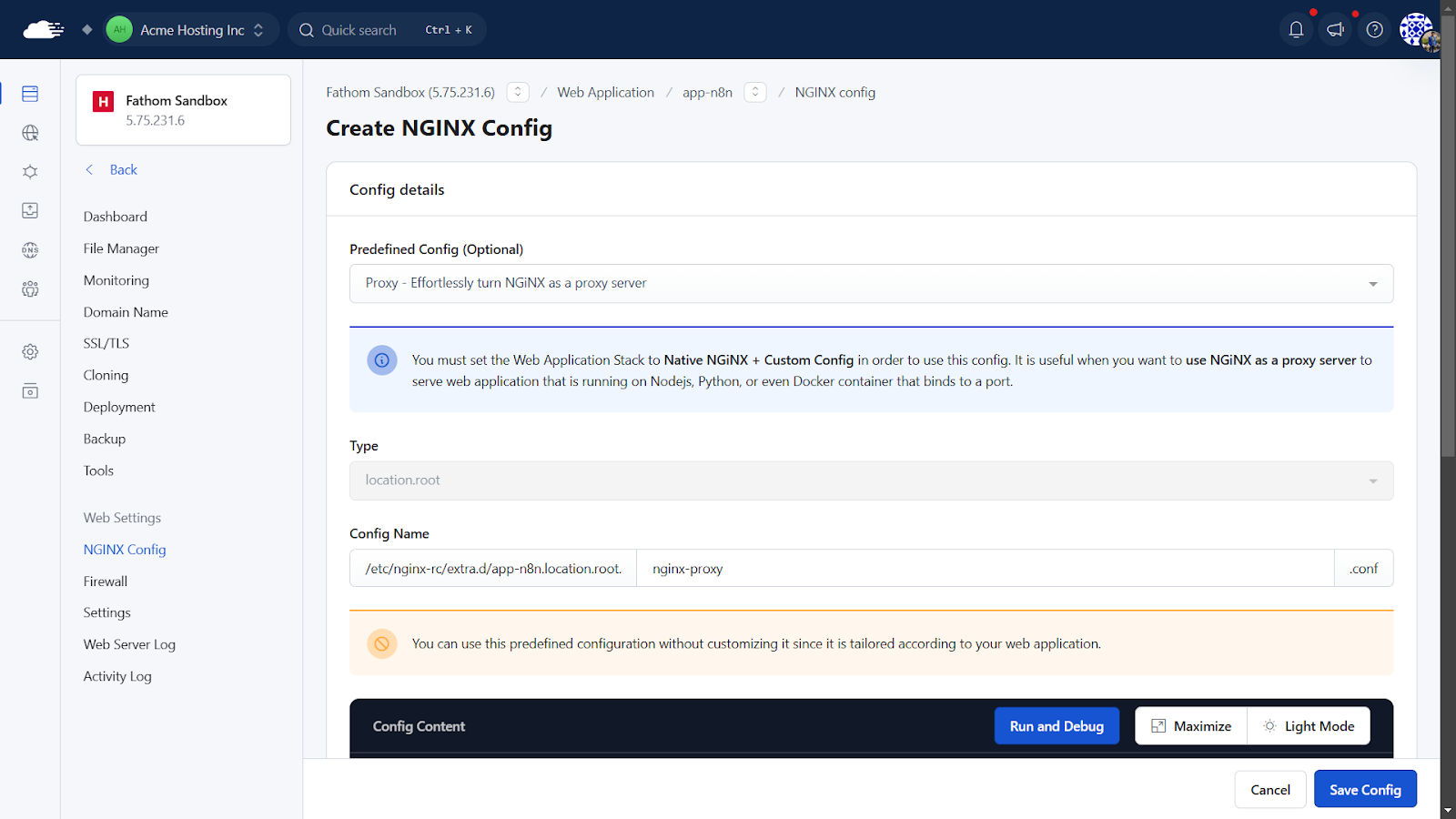
    After enabling the Docker container, you must configure a reverse proxy to route traffic to your container.

    1. In RunCloud, go to your n8n-app
    2. Under “NGINX Config“, click “Create NGINX Config“
    3. Select: Proxy – Turn NGINX into a proxy server
    4. Name it n8n-proxy
    1. In the Content box, paste the following NGINX configuration:
    proxy_pass http://host:5678;
    # > uncomment below line if you want to disable proxy buffering
    # proxy_buffering off;
    proxy_set_header X-Real-IP $remote_addr;
    proxy_set_header X-Forwarded-Host $host;
    # > websocket support. if you want to proxy websockets, uncomment 3 lines below
    proxy_http_version 1.1;
    proxy_set_header Upgrade $http_upgrade;
    proxy_set_header Connection "upgrade";
    1. After configuring the required settings, click “Create NGINX Config“. RunCloud will test and apply this configuration on your server immediately.

    Step 6: Access Your Secure n8n Instance

    After enabling the proxy, open your web browser and go to the domain you configured for your web application (e.g., https://n8n.example.com).

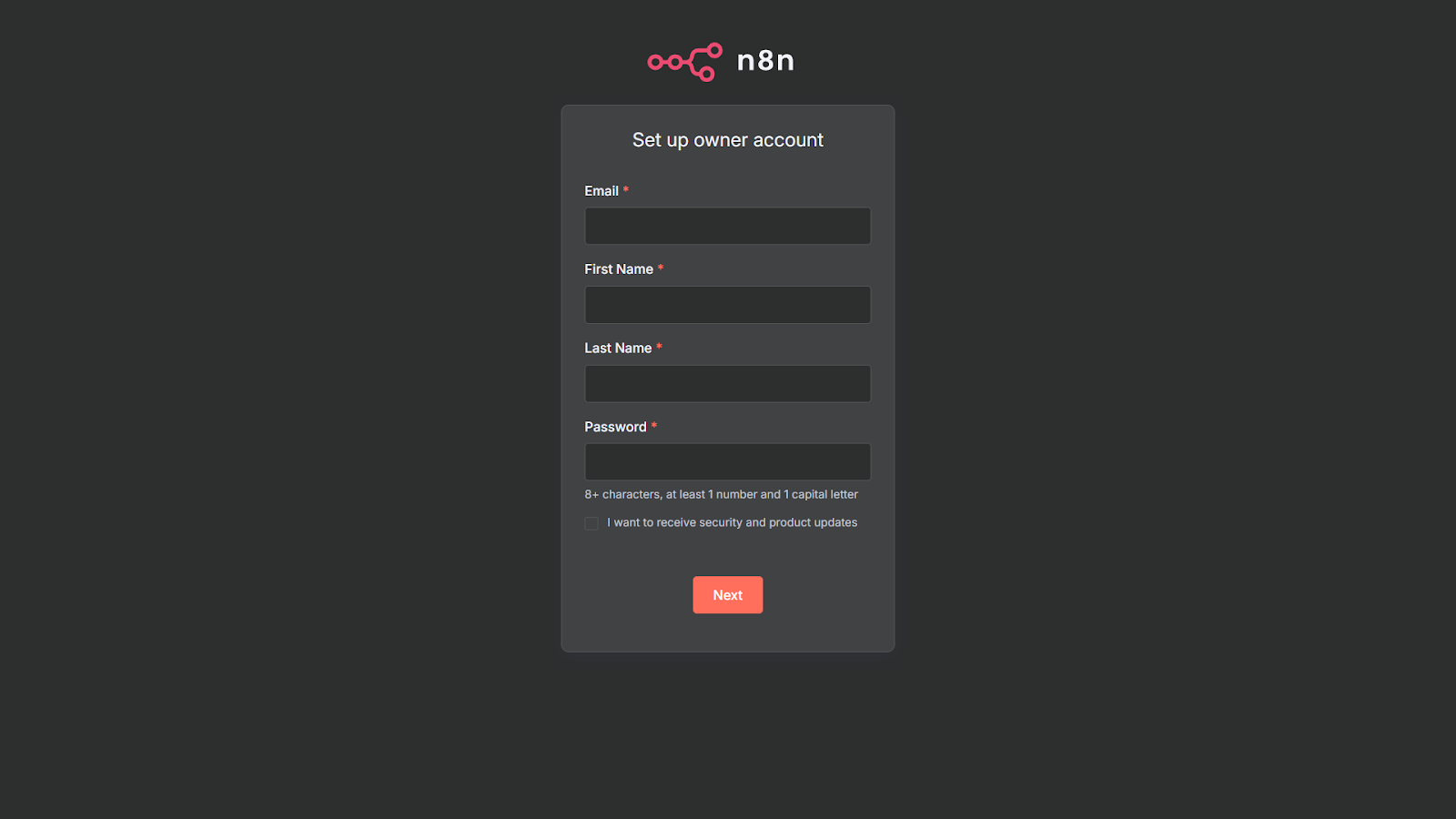
    If you use RunCloud’s built-in SSL manager, you will see the following n8n setup screen to create your account:

    Step 7: Enable Backups

    Don’t skip this. Backups protect your data and save time if anything breaks.

    In your RunCloud dashboard, set up automated backups for your n8n-app. You can create daily snapshots of your files and easily restore them if needed.

    Learn more in our backup guide.

    Final Thoughts: Your Automation Journey and Beyond with RunCloud

    You now have a secure, fully self-hosted n8n setup – managed through RunCloud and running in Docker.

    But setting up n8n is just scratching the surface of what RunCloud can simplify for you. You can also use RunCloud to effortlessly host other applications without diving deep into complex server configurations. With RunCloud, you can easily deploy and manage:

    • Nextcloud: Your private cloud for files, calendars, and contacts.
    • WHMCS: The leading web hosting automation platform.
    • WordPress: The world’s most popular content management system.
    • FreeScout: A powerful open-source help desk and shared inbox.
    • Ghost CMS: A sleek and modern platform for professional publishing.
    • And much more…

    RunCloud takes the hassle out of server administration, allowing you to focus on what you do best → building, creating, and automating.

    Ready to simplify your server management? Sign up for RunCloud today.

  • Bringing Containerization to RunCloud’s Cloud Architecture

    Bringing Containerization to RunCloud’s Cloud Architecture

    With a quarter of all businesses relying on Docker (according to this Datadog study) and over 20% of web hosts running it – Docker’s containerization architecture is tried, tested, and relied upon from startup to enterprise.

    At RunCloud, we’re pleased to announce that we are now rolling out support for Docker, making it easier for its users to deploy and manage their web applications (powered by Docker containerization architecture).

    In this article, we’re going to cover exactly what this means and what you will now be able to do with the combined power of RunCloud and Docker.

    Why Containerization – What Led Us Here

    Firstly, a very brief bit of history.

    What came before Docker, and why was Docker needed?

    Most enterprise companies, by default, usually treat all users as untrusted and try to limit their access to services even if they are performing just a simple action. One technology that is commonly used for this purpose is chroot jail. This is a way of isolating a single process and its children from the rest of the system. It’s often used within VMs, resulting in a Dedicated → VM → chroot structure.

    The problem with chroot jail is that it requires copying or mounting all necessary files from the host to the jail – which can be difficult to manage if multiple jails are needed.

    Additionally, many applications only support a single jail, making it difficult to provide each user with their own jail. Overall, jailing users can be messy and requires careful tracking of shared objects and binaries within the jail.

    When jailing users became difficult to manage, several major companies sought to create a new technology that would make it easier. This led to the development of Linux Containers (LXC), which offered a VM-like solution without the need to create a virtual machine. However, LXC was difficult for many people to use, as it required creating your own image rather than using pre-made solutions. This limited the adoption of LXC, despite its powerful capabilities.

    In contrast to VMs, container images are read-only and faster to start up. This led to the creation of Docker, which was developed by Docker Inc. with a focus on security, ease of use, and portability. Docker has become one of the most popular tools in the world of DevOps and allows for easy sandboxing of servers. In 2015, Docker launched the Open Container Initiative (OCI) to provide a standard for OS-level virtualization.

    The Benefits of Docker Containerization with RunCloud

    1. Enhanced Security

    If your web app gets hacked while running natively on RunCloud, hackers may well be able to gain access to the root shell if the server isn’t hardened properly. This is clearly bad news, as once the root user gets compromised, hackers gain access to everything on the server.

    But in Docker, if your site gets compromised, you just need to clean up your web app and then restart the Docker container to roll everything back to how it should be quickly, easily, and relatively painlessly.

    Using Docker allows us to better implement the rule of least privilege. Everyone with access to your server is treated as if you don’t know what their intention or capabilities are. Someone accessing your server may just want to do their job, perhaps they have bad intentions, or maybe they are a complete beginner who may inadvertently run a command that could make your server crash.

    With Docker running inside RunCloud, we have `rc-shell` (RunCloud Shell) that will jail users inside their own container. Anything they do will only affect their data and their container – leaving the rest of the server unscathed.

    2. Improved Performance

    Although Docker may look like a virtual machine, it’s actually very different from that concept. Deleting old Docker containers and launching a fresh one takes only a couple of seconds. By using Docker to run your server, you can expect near-native performance, with improved performance when used in production at scale (as a result of isolation).

    3. Better Server Management

    Using containers for your server makes it much easier to manage your servers.

    Firstly, since you are not installing services directly on the operating system, your server will be much cleaner, and you will encounter fewer problems in server management.

    Secondly, suppose you need to use an older version of PHP on your site in the future. It will be much easier to do so with a containerized server since the version of the operating system running on the server might drop support for older PHP versions in the future.

    Finally, upgrading your server will be much simpler because you won’t have to worry about compatibility issues with shared libraries or other potential causes of server crashes.

    4. Same Dashboard/No Learning Curve

    RunCloud aims to provide an easy-to-use interface for managing containerized servers – users migrating from native RunCloud installations will find the transition to using containers to be smooth and straightforward.

    Additionally, users don’t need to have any knowledge of Docker to use RunCloud, as they won’t need to use any Docker commands. The learning curve for using Docker with RunCloud is relatively shallow, with only a few new concepts for users to learn in order to get started. Overall, using Docker inside RunCloud offers a more user-friendly experience for managing your server.

    What’s New?

    There are a lot of new features coming to RunCloud. Here are some of the most exciting ones.

    Add Individual Services

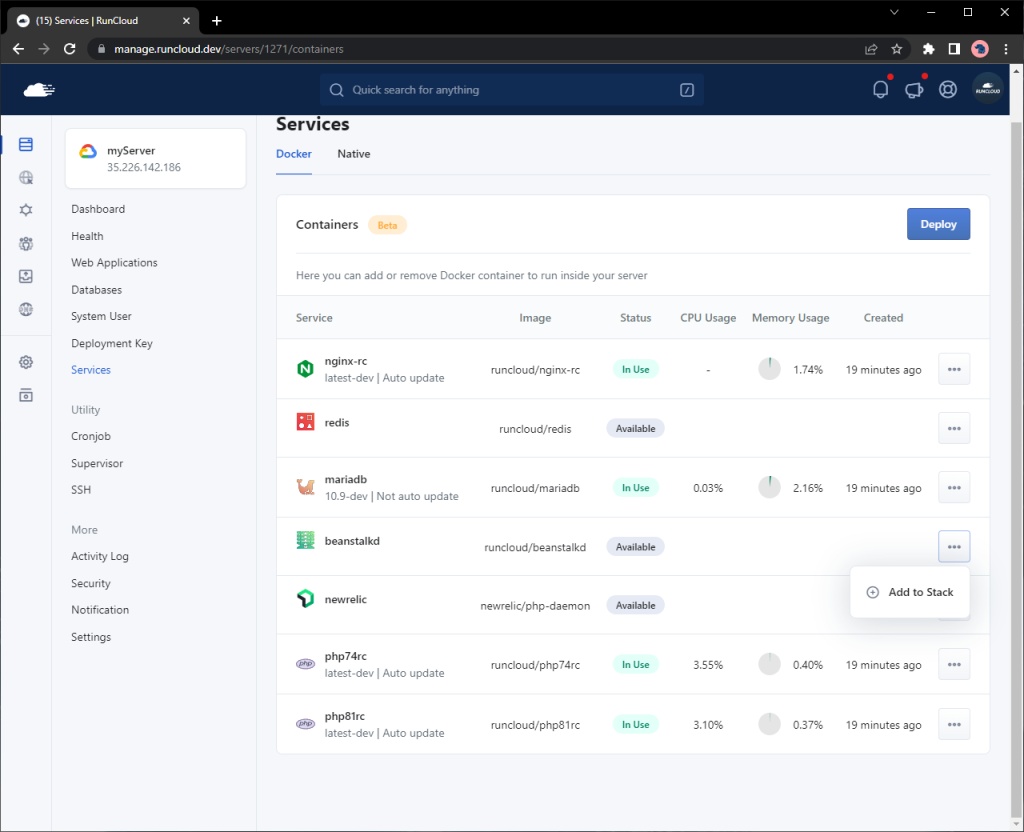
    In a native installation of RunCloud, all necessary software such as NGINX, PHP, MariaDB, Redis, and Beanstalkd are installed and can be started or stopped as needed.

    In a containerized server, you now have the option to run each of these components individually – and can even choose not to run any of them if desired. Additionally, if a necessary image is not present on the server, it can automatically be downloaded from Docker Hub to ensure that everything is up to date and ready to run.

    adding individual services in runcloud

    Quick and Easy Upgrades

    With a native installation of RunCloud, some software, such as Redis and Beanstalkd may not be automatically updated after being installed. In order to enable automatic updates for these components, you may need to use third-party software, which can sometimes cause update failures and lead to issues such as agents not updating to the latest version.

    In contrast, a containerized server automatically checks for the latest versions of all necessary components every 3 hours, ensuring that your software is always up to date and avoiding potential update & security issues.

    Selectively Upgrade Services

    MariaDB and Beanstalkd use exclusive locks, which means that during an upgrade, they can each cause a few seconds of downtime, as the running container must be stopped in order to start a new one. While the process of starting a new container is instantaneous, the health check process may cause a delay in reporting the status of the running service. Because of this, we have provided the option to enable or disable automatic updates for MariaDB and Beanstalkd.

    However, it is generally recommended to avoid automatically updating critical software and instead has updates performed by a professional. With Docker, however, updates can be performed more easily and with minimal downtime. By default, MariaDB and Beanstalkd will not be automatically updated, but users can change this behavior if desired.

    With native installations of RunCloud, updates to the agent software can sometimes result in new versions of other software being automatically installed on the server, even if the user doesn’t need or want them. For example, if an update to the agent brings PHP 8.0 to the server, it will be automatically installed whether the user wants it or not.

    However, in a containerized server, the user has the ability to choose which versions of software they want to use and can easily remove any unnecessary components from the server stack. This allows for greater control over which software is installed and used on the server.

    Easily Restore Passwords

    In a native installation of RunCloud, the password for the MariaDB root user is stored in the /etc/mysql/conf.d/root.cnf file. If this password is accidentally changed, it must be updated in the file in order to access the MariaDB server, and it can be difficult to regain access to the server if the password isn’t known.

    In a containerized server, if the password in the /etc/mysql/conf.d/root.cnf file is changed, the MariaDB server will automatically reset the root password to match the new password specified in the file, allowing you to easily regain access to the server.

    Automatic Network Management

    In a containerized server, the values localhost and 127.0.0.1 no longer refer to the server itself but instead indicate the location of the current container. This can cause issues when installing software, such as WordPress, that expects these values to refer to the server.

    To address this, RunCloud uses the host to indicate the host machine rather than the current container. This can be used in the DB_HOST setting when installing WordPress, for example, to ensure that the database connection is established with the host machine rather than the PHP container. Additionally, the values mariadb and redis can be used to connect to the MariaDB and Redis containers, respectively, within your application.

    Isolate Users

    Docker is designed to run as a privileged user, such as the root, or a user with sudo access. In RunCloud, creating a system user does not automatically grant that user privileged access. Since PHP is not installed natively on the server, users will not be able to run PHP-related commands.

    To overcome this limitation, RunCloud is introducing rc-shell, a jailed shell that allows users to run commands within a Docker container. Whenever a user connects to the server via SSH or SFTP, a new container is created, and the user is logged in to that container. This provides a secure environment where the user can only access their own files and has access to all necessary commands.

    The only limitation is that each user can only choose one PHP version to use as their PHP command-line interface (CLI). However, users can choose whether to use the same PHP CLI version as the server or a different version for their own user account.

    Run Different Versions of The Same Command

    With a native installation of RunCloud, the php command refers to the PHP command-line interface (CLI) that is installed on the server. In a containerized server, this behavior is the same, and the php command refers to the default PHP CLI version that is installed on the server.

    If a user wants to use a different PHP CLI version, they can use the /RunCloud/Packages/<php version>/bin/php command, where <php version> is the version of PHP they want to use.

    In a containerized server, users can also use commands such as php72rc, php73rc, php74rc, etc., to run a specific PHP CLI version. However, the composer and wp commands will always use the default PHP CLI version and cannot be changed at this time. This applies to both native and containerized installations of RunCloud.

    When the root user runs the php, wp, or composer command within a user’s directory, such as /home/user/webapps/mysite, these commands will automatically be run as if they were being executed by the user. This means that the root user does not need to switch to the other user in order to run these commands.

    For example, if the root user runs the command composer install within /home/amir/webapps/mysite, it will be executed as if the amir user had run the command themselves. This provides a convenient and user-friendly way to manage these commands within a user’s directory.

    “Run as” / Emulate / Mock User

    Due to the limitations described above, cron and supervisor may not be able to run the php, composer, and wp commands as a specific user. To overcome this, RunCloud provides a feature called “fake run as” for use with cron and supervisor.

    When using this feature, the specified command will be run as the root user, but it will be executed as if it were being run by the user specified in the “fake run as” field. This only applies to the php, composer, and wp commands and should not be used for any other commands. Using this feature allows cron and supervisor to run these commands as if they were being executed by a specific user, even though they are actually being run by the root user.

    Restart Services Selectively

    In a native installation of RunCloud, the systemctl command can be used to reload PHP-FPM for a specific PHP version. For example, to reload PHP-FPM for PHP 7.4, you can use the command systemctl reload php74rc-fpm.

    In a containerized server, the <phpversion> reload command can be used instead, where <phpversion> is the specific PHP version you want to reload. For example, to reload PHP-FPM for PHP 7.4, you can use the command php74rc reload. The nginx-rc reload command can also be used to reload Nginx in a containerized server. This provides a convenient and user-friendly way to manage and reload PHP-FPM and Nginx on a containerized server.

    How To Use Docker On RunCloud

    It is fairly straightforward to use Docker on RunCloud.

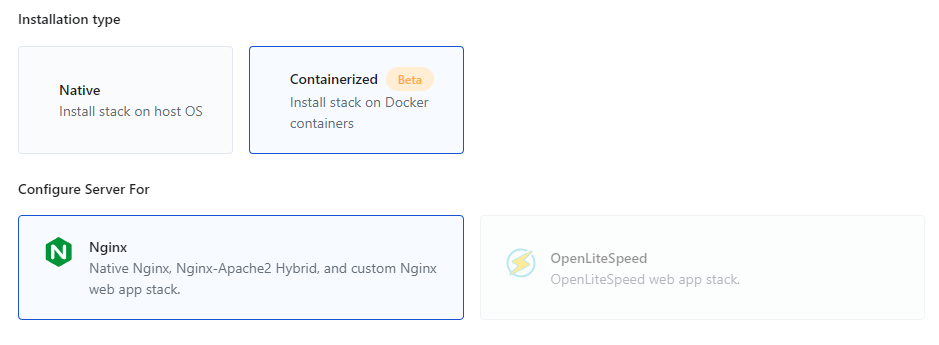
    1. Create a fresh Ubuntu server on your favorite public cloud, and click “Connect a New Server” in your RunCloud dashboard. Pick the “Containerized” option and complete the necessary fields.
    creating containerized server in runcloud
    1. Having done that, you can either continue via direct installation, or choose to install manually as you normally would.
    manual installation of containerized server on runcloud

    Summary

    The infrastructure improvements that Docker containerization allow us to deliver are incredibly powerful, and – in some ways – we’ve only really scratched the surface of what’s possible.

    By rolling out support for Docker, we’re making it easier for users to deploy and manage web applications, including testing in consistent, isolated environments – also playing a role in preparing our architecture for further improvements planned in 2023 and beyond. This is an important step for RunCloud and all of our users.

    With RunCloud, you don’t need to be a system administrator or Linux expert to manage your cloud infrastructure. With everything from backups, staging, cloning, atomic deployments, and more – RunCloud makes it truly enjoyable to manage your own production-grade infrastructure. Learn more & get started today.