Full Page Cache stores a completed version of a WordPress page so later requests can reuse it instead of requiring WordPress to generate the page again.
RunCache supports several page cache types, depending on your server environment. The cache type determines where the cached page is stored and which part of the server stack serves it.
This guide explains how the available cache types differ, which options RunCache may offer on your server, and how to choose and switch between them.
Access Full Page Cache Settings
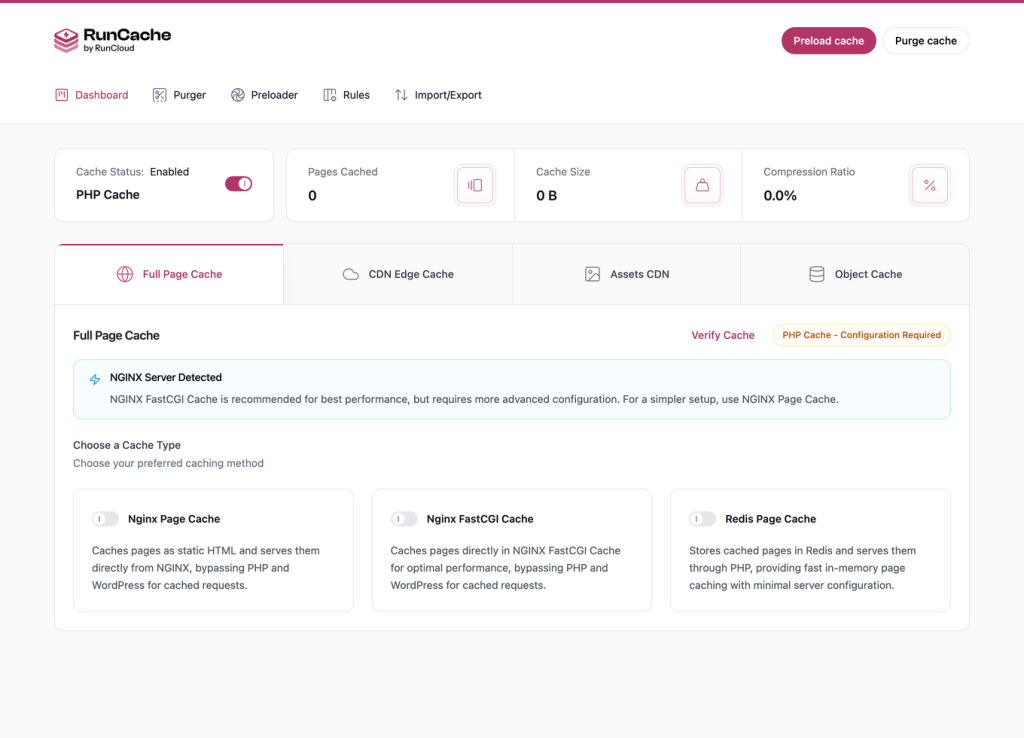
In WordPress, go to RunCache > Dashboard > Full Page Cache.
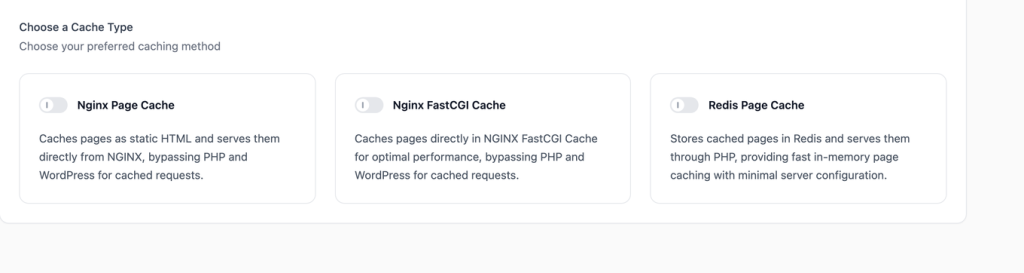
RunCache detects the server environment and displays the cache types supported by that server.
How the Cache Types Differ
Without page caching, WordPress generates the page for each request.
A page cache stores the generated HTML so later requests can reuse it. The cache type determines where the cached page is stored and which part of the server stack serves it.
- PHP Cache stores cached pages as files on disk and serves them through PHP. It does not require web server configuration and is the default RunCache cache type.
- NGINX Page Cache and Apache Page Cache store cached pages as files on disk and serve them directly through the web server. PHP creates the cached file, but later cached requests can be served without starting PHP.
- NGINX FastCGI Cache stores responses in NGINX’s FastCGI cache and can serve cached requests without starting PHP or WordPress. It typically requires more server configuration than NGINX Page Cache.
- Redis Page Cache stores cached pages in Redis and serves them through PHP. It requires a working Redis server and the PHP Redis extension.
- LiteSpeed Page Cache uses the LiteSpeed server’s page-cache system to serve cached responses at the server level. It is available on LiteSpeed and OpenLiteSpeed servers.
Cloudflare edge caching is configured separately under CDN Edge Cache. See Assets CDN vs. CDN Edge Cache: What’s the Difference? for an explanation of how edge caching differs from RunCache page-cache types.
Why Available Cache Types Vary by Server
The available options depend on the server environment RunCache detects.
For more information about server detection, see RunCache and RunCloud.
Cache Types by Server Environment
| Detected server | Cache types offered |
|---|---|
| NGINX | NGINX Page Cache, NGINX FastCGI Cache, Redis Page Cache |
| RunCloud server with connected web application | RunCloud NGINX FastCGI Cache, RunCloud NGINX SrcCache Cache, Redis Page Cache |
| RunCloud server without a connected web application | NGINX Page Cache, NGINX FastCGI Cache, Redis Page Cache |
| Apache | Apache Page Cache, Redis Page Cache |
| LiteSpeed or OpenLiteSpeed | LiteSpeed Page Cache, Redis Page Cache |
| Not detected | Redis Page Cache |
Redis Page Cache can be available across different server types because it does not depend on web server configuration.
If the PHP Redis extension is missing, RunCache disables the option and prompts you to install it.
PHP Cache as the Default Option
PHP Cache is the default RunCache cache type and does not appear as a separate option card.
If you disable an active server-level cache type, RunCache falls back to PHP Cache rather than disabling page caching completely.
RunCache Recommendations by Server Type
RunCache displays a recommendation based on the detected server environment:
- NGINX: RunCache recommends NGINX FastCGI Cache when you are comfortable with the additional server configuration. NGINX Page Cache requires less setup.
- Apache: RunCache recommends Apache Page Cache.
- LiteSpeed: RunCache recommends LiteSpeed Page Cache.
- RunCloud server without a connected web application: configure the supported server-level cache through the RunCloud Dashboard when available.
For more information, see the RunCloud-specific cache setup documentation.
Choose a Cache Type
- If you do not want to edit web server configuration, use PHP Cache or Redis Page Cache if Redis is available.
- On NGINX, choose between:
- NGINX Page Cache for a simpler configuration.
- NGINX FastCGI Cache if you want to use NGINX’s FastCGI cache and are comfortable with the additional setup.
- On Apache or LiteSpeed, use the corresponding server-level cache type supported by your server.
See the Apache Page Cache or LiteSpeed Page Cache setup guides for configuration details.
Switching Cache Types
When you switch cache types, RunCache disables the previous cache provider, enables the new provider, and verifies the new configuration.
The dashboard may briefly display a Checking configuration status while verification runs.
Switch Cache Types with WP-CLI
Before switching to a server-level cache type with WP-CLI, make sure the required server configuration is already in place.
Then run the appropriate wp runcache enable command from your WordPress installation.
For example:
wp runcache enable nginxIf verification fails after switching to a server-level cache type, confirm that the required server configuration has been added and the web server has been reloaded.
Then verify the cache again.
Full command list: WP-CLI Command Reference.
After switching cache types, verify the result using the Verifying the Cache Is Working guide.
You can confirm the active cache type from the X-RunCache-Type response header.
If you have any other questions or need help, please feel free to get in touch with our 24/7 support team. We’re here to help!