Docker is one of the most popular tools used by software developers, as it makes it easy to create, deploy, and run applications by using containers.
By using containers, developers can package up an application with all of the parts it needs, such as libraries and other dependencies, and ship it all out as one package.
That way, the application will run quickly and reliably from one computing environment to another. First released in 2013, Docker has quickly become a vital tool in any developer’s arsenal.
One way to keep track of development is to review Docker logs regularly. In this post, we’re going to discuss what Docker logs are and how you can use them.
What Are Docker Logs?
Docker logs are files that contain information about the activities that have taken place within a container. This information can be helpful for debugging purposes or for gathering performance data.
By default, Docker logs are stored in JSON(JavaScript Object Notation) format. However, you can also configure Docker to store logs in other formats, such as GELF (Graylog Extended Format) or Syslog.
Docker containers generate two types of logs: container logs and daemon logs. Container logs are generated by the application running in the container. Daemon logs, on the other hand, are generated by the Docker engine itself and include information about things such as container startup and shutdown, as well as errors that occur during container execution.
Docker logs are important because they can help you troubleshoot issues with your containers.
For example, if you notice that your container is taking longer than usual to start up, you can check the logs to see if there’s any information about what’s causing the delay.
Additionally, if you’re having problems with your application crashing or otherwise not working properly, the logs can be helpful for debugging purposes.
Where To Find Container Logs
Container logs can be found in the /var/lib/docker/containers directory on Linux hosts and in C:\ProgramData\docker\containers on Windows hosts. Each container has its own log file; the name of the file is {container_id}.log.
Container logs include information about stdout (standard output) and stderr (standard error) output from the application or service running inside the container. They also include any information logged by the application itself.
Where To Find Daemon Logs
Daemon logs can be found in /var/log/docker.log on Linux hosts and in C:\ProgramData\docker\log\docker.log on Windows hosts. Host logs include information about events that occur on the host, such as when a container is created or destroyed. They also include any errors or warnings generated by the Docker daemon itself.
How To Use Docker Logs
Now that we know what Docker logs are and where to find them let’s take a look at how to use them effectively.
The most common way to access Docker logs is through the command line interface (CLI). You can execute the docker logs command to access the logs.
This command allows you to view the logs for a specific container. For example, let’s say you want to view the logs for a container with the ID “abc123”. You would use the following command:
$ docker logs --tail 50 abc123
This command would return the 50 most recent log entries for the container with the ID “abc123”.
This command essentially retrieves logs in batches that were available at the time of execution.
How to Clear the Docker Log File
There might be times when you want to get rid of old logs. You can use a simple command to do this. By default, the log file is located at /var/lib/docker/containers/<container_id>/<container_id>-json.log on Linux machines.
You can also view the contents of the log file by running the following command:
sudo docker logs <container_id>
If you want to delete the logs file entirely, you can use the rm command. Be warned, however, that this will permanently delete the file, and there is no way to recover it.
This will leave an empty log file that Docker will continue to write to as new events occur in your containers.
If you’re on Windows, Docker uses a virtual machine known as MobyLinuxVM. Logs are generally stored in the file path: /var/lib/docker, though you need a container with full root access to delete the log files.
To do this, first, run the following command:
Find /var/lib/docker/containers/ -type f -name “[name].log” -delete
This will delete the specific log file on Windows.
After Action Report – Keeping On Top of Docker Logs
Docker logs can provide much-needed insights about events in your containers and can also help you trace any errors.
As your development workflow grows, you’ll want more granular control over your servers. RunCloud lets you manage your cloud servers, and deploy websites and web apps, all through a secure management panel.
Have any tips or tricks to share? Join the conversation by commenting below, or send us a Tweet about how you use Docker logs!
Docker has quickly become one of the most popular platforms for software developers and teams that wish to streamline software development, shipping, and execution. However, most developers don’t secure their containers properly.
According to security analysis by Prevasio, of around 4 million Docker images, more than 2 million had critical vulnerabilities. That’s a damning statistic, and really underscores the importance of security for your Docker containers.
In the following article, we discuss the 14 best practices that you can follow to secure your Docker containers.
Understanding Docker Concepts and Containerization
Docker containers are essentially software units that isolate each instance of an application and all dependencies to allow the application to run faster and without any hiccups. Container images are simply standalone executables that package everything needed to run an application.
All software in Docker containers runs exactly the same, regardless of changes in infrastructure. The reason why software developers prefer Docker containers is because they help isolate software from the environment, and ensures uniform performance even if differences exist, such as between the development or staging environments.
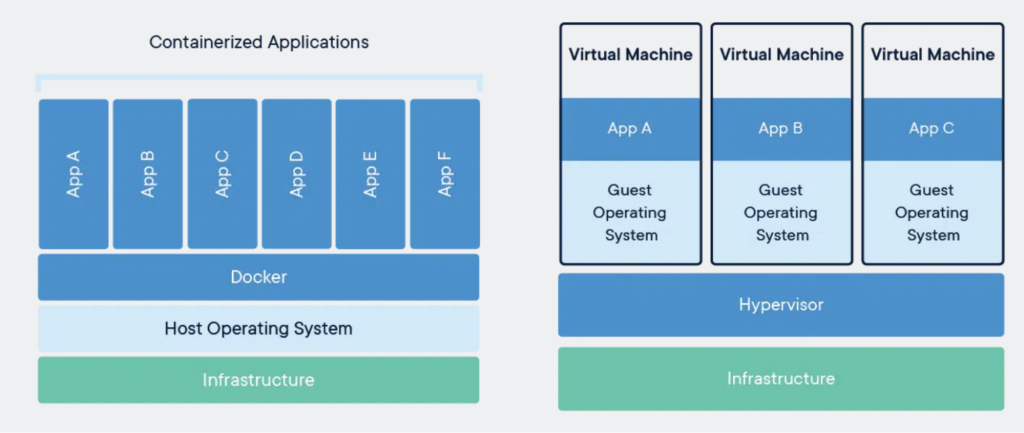
While you may be tempted to compare Docker containers with VMs (virtual machines), there’s an important difference: the former simply virtualize the operating system, and pay no attention to the hardware. As a result, they’re more efficient and portable.
Source: Docker.com
What Is Docker Container Security?
Since containerized environments are considerably more complex than traditional development environments, securing them is critically important. It is typical that in every production environment, a significant number of Docker containers are deployed.
More importantly, it’s imperative that security experts reevaluate their approach, as containerized environments often have more moving parts (such as resource quotas, container registries, firewall rules, etc.) that need to be secured than a conventional deployment environment.
Docker container security simply refers to the use of different practices and the implementation of effective security controls to protect the components within a Docker container, including the code, any system tools, libraries, or custom settings.
The 14 Best Ways To Secure a Docker Container
Container security should be taken seriously, as vulnerabilities could cause significant delays and lead to cost overruns throughout the development process. More importantly, traditional security methods are not always viable when securing Docker containers, as containerized environments aren’t as visible as traditional development environments.
Here are 14 best practices we highly recommend you follow to secure Docker containers.
1. Regularly Update Docker and the Host OS
Security breaches in obsolete versions of Docker often pose the biggest risk for developers. Updating your Docker version regularly is very important, as these updates often include bug fixes, and patches to improve performance and fix vulnerabilities.
But, that’s not all. You also need to update the host operating system. Should an attacker exploit a vulnerability within the host operating system, your container safeguards won’t be of much use.
That’s because containers generally run on top of the kernel as it’s more efficient. Make sure you update the base system as well as keeping Docker up to date. You can also subscribe to security updates or news, so you’re always in the know when a new security patch is released.
2. Reduce Default Privileges for Docker Containers
One of the many security threats that you need to be wary of is a “container breakout.” This occurs when the Docker container fails to abide by isolation checks and ends up accessing privileged information from the host.
The best way to mitigate the chances of this happening is to limit the default privileges granted to your containers. For instance, the daemon generally has root access, but you can always change that, or create another namespace with specific privileges.
You can drop any access control capabilities that you feel are not required by the application. Ideally, it’s best to revoke access to CAP_SYS_ADMIN, since it grants access to a range of root-level permissions that can be exploited by malicious actors.
And, more importantly, be very careful when running a sensitive container that requires root-level access. You can verify the Container image authenticity first before you run it.
3. Reduce Your Attack Surface with Lean Containers
By default, Docker containers are generally quite lightweight. However, in some cases, developers tend to treat them like servers. When you start adding files constantly to the containers, or stop updating them on a regular basis, you’re essentially increasing your attack surface.
A good practice is to try to reduce the number of components within each container as much as you can. Aim to keep the containers as lightweight as possible, so the attack surface is relatively narrow.
And, in case a vulnerability is detected in any Docker image, you should resolve the problem as quickly as possible and deploy a new container, instead of leaving it for later.
4. Monitor Container Activity
Since there are often multiple instances running in each Docker container image, it’s important that you take a viable approach to monitoring container activity. The dynamic nature of Docker containers often makes this difficult.
New versions and images are often launched at breakneck speeds, making tracking complicated. Another downside to this fast-paced approach is that should an issue arise, it can spread relatively quickly across different applications and containers.
That’s one of the main reasons why tracking container activity is crucial. It’s also essential to create internal controls that help you identify images that may contain vulnerabilities or faults. This way, administrators can quickly fix the issue and deploy new containers instead.
Ideally, you’d want to monitor activity across master nodes, workloads, and container engines. Third-party tools like Calico are an excellent choice for tracking container activity.
5. Set Volumes and File System Permissions to Read-Only
Instead of giving write access to containers, it might be a wise idea to run containers with a read-only file system. This can prevent malware from causing harm, such as propagating across the network or modifying the internal configuration of your network.
To set Docker containers to read-only, run the code below:
docker run -read-only alpine sh -c 'echo "running as read only" > /tmp'
6. Regularly Scan and Verify Each Container Image Before Use
Before you start using container images, it’s imperative that you scan and verify each image to detect vulnerabilities. This is all the more important if you’ve pulled an image from a public repository.
Should a vulnerability exist in a single component of your image, it’s going to propagate to all other containers that are created using that image. The vulnerability in the base image will likely spread to all other images, which could lead to harmful consequences.
Scanning container images is an excellent practice that can help you identify security issues and vulnerabilities. Unsafe images should never be added to the container registry that production systems can tap.
Most tools that focus on container scanning rely on the CVE (Common Vulnerability and Exposure) database, and test images to identify any CVEs. Regular scanning is a great way to ensure that threat levels remain low.
7. Tighten Security with Container Registries
Container registries are commonly used by development teams as they allow them to quickly download container images with a single click. This is great when they have to work with multiple images. You can also configure registry access management permissions.
While it saves a lot of time, it leads to an elevated security risk. How can you be confident about whether the image you’re pulling is trustworthy and free from malware or other vulnerabilities?
To prevent any issues, it’s best if you use a private registry that’s protected by your own firewall. Also, implement RBAC (Role Based Access Control) so that only authorized users are able to access and download images from the registry.
8. Avoid Exposing the Docker Daemon Socket
The Docker daemon socket is a Unix network socket that is used by the Docker API to allow for seamless communication. The root user has ownership of the Docker daemon socket, but if someone else is given access to the daemon socket, they’ll also have root-level permissions.
To avoid such an issue, it’s best that you avoid making the daemon socket available for remote connectivity. If you absolutely have to, always make sure that you use the encrypted HTTPS socket that Docker has.
9. Reduce Resources Available to Containers
If an attacker gains access to a container, they may try to use the host resources to perform malicious operations. A simple way to protect against this problem is to reduce CPU usage limits and Docker memory consumption so that breaches don’t lead to serious harm.
By default, Docker containers are given full access to all the underlying CPU and RAM resources available on the host. You can, however, set quotas so that each container only has a specific number of resources available to them. This ensures that other services running on the host aren’t affected.
10. Prevent Direct Access to Core Container Files
Because containers are regularly upgraded and bug fixes are implemented, files are often exposed every time they’re accessed by a user. Ideally, you don’t want to maintain container logs within the container itself.
If you keep the logs outside, it prevents users from accessing the container files directly. This means that team members can troubleshoot problems, if any arise, without directly accessing the container directory.
11. Only Use Base Images That You Trust
Supply chain attacks pose a serious risk, so it’s important that you avoid using base images that you can’t trust. Untrusted base images pose a serious issue, so it’s important that you avoid using them.
Thankfully, you can find a host of Docker Official Images for most operating systems. Ideally, you will want to avoid using unofficial and untrusted base images as much as possible.
12. Avoid Upgrading System Packages
There’s always a risk that things might go sideways when you upgrade your system packages since you’ll end up upgrading the latest version of all your software dependencies.
It’s best to pin them so you can cut down on the unpredictability as much as possible.
13. Avoid Using the ADD Command Unless Necessary
The ADD can be used when you want to copy files into a Docker image. However, you can also point it to a remote URL to allow it to fetch content when you’re building an image.
Ideally, you’d want to get the content first and inspect it carefully before you copy it instead of copying data remotely.
14. Steer Clear of Curl Bashing
Curl is a popular command line tool that’s used to copy content to and from a server. As you can imagine, it carries a significant amount of risk, especially if you aren’t copying data from a trusted source, or can’t authenticate the content that you’ve downloaded.
Frequently Asked Questions
Is Docker a Security Risk?
Docker doesn’t have to be a security risk as long as you update the platform and the host operating system and make sure you take proper steps to secure your containers.
Does Docker Help Security?
If used correctly, Docker can significantly improve security performance, especially since containerization greatly improves security when running isolated applications.
Can Docker Images Be Encrypted?
Yes, Docker images can be encrypted using containers or other tools. However, encrypting Docker images is not a straightforward process; it requires considerable expertise.
Can You Password Protect a Docker Container?
Since Docker containers don’t generally have conventional users, and you can’t log into a container, there’s no way to set passwords. Users simply run a command instead of accessing a container the conventional way.
What Is Docker Bench Security?
The Docker Bench for Security is simply a script that inspects for different best practices that focus on deploying Docker containers that are currently in production. All of the inspections are fully automated.
After Action Report – Secure Your Docker Containers
It’s very important for organizations to take security seriously, especially within a cloud-native development framework.
From taking simple steps such as enforcing encrypted communication, and using TLS Certificates to restricting container capabilities, it’s important that you review security practices regularly.
Always factor in vulnerabilities and discuss with your security experts how to mitigate the risk as much as possible. By creating a security policy that focuses mainly on container integrity and the infrastructure, organizations can reduce their threat levels by a significant margin.
When Solomon Hykes founded dotCloud in 2008, his ambitions were quite different. The company, a Y Combinator Summer 2010 graduate, eventually pivoted in 2013, relaunching as Docker.
Hykes took to the stage at PyCon in 2013, releasing the first demo for Docker. During that first talk, Hykes explained that Docker was simply the underlying technology that powered dotCloud and that the company was pivoting towards an open-source model.
It didn’t take long for Docker to attract attention from industry heavyweights like IBM, Red Hat, and Microsoft. With a Docker container, you could develop software in a portable environment.
Docker allowed developers to deploy, replicate, and easily port images to simplify workflows and introduce a level of flexibility that was simply not possible at the time.
There are several key components that combine to help you perform functions using Docker, and the image is just one of them. Apart from that, there’s the basic Docker client and the Docker daemon, both of which are required to make images work.
But, what is a Docker image? How do you use it? Here’s everything you need to know.
What is a Docker Image?
A Docker image is simply a read-only file that’s used to run code within a Docker container. Think of it as a template that contains all the instructions needed to run the code. All of the code and dependencies are packaged in one file.
The Docker image contains all of the tools, packages, libraries, and source code required to run the software. These instructions can be used to build Docker containers, often containing multiple layers, with each one originating from the previous layer.
Docker images can be deployed on any host, and they are reusable, allowing developers to take images from one project and use them in another, saving them considerable time and effort.
Layers are offshoots of instructions from the Dockerfiles stored in your local image cache. The local image cache forms the base for subsequent images you want to create. In general, some of the components of Docker images are listed below.
Base image
This helps you build Docker images from scratch. Base images give you control of all other Docker images. You can build a base image using the FROMscratch directive in the Dockerfile. Some examples of base images include Debian, Ubuntu, Redhat, and Alpine.
Parent image
They’re the building block of Docker images. The FROM directive in the Dockerfile is used to create the parent image. In most cases, Dockerfiles are built from a parent image.
Layers
Also called “image layers”, these are the intermediate images that form Docker images. Through the layers, you can cache every step you take while creating Docker images. Layers also increase the reusability and the speed of creating Docker images.
Layers are set in a hierarchical form, and each layer depends on the one preceding it. This is why it’s essential to keep layers susceptible to changes as high as possible in the stack list. Because should you change any layer, Docker will rebuild the specific layer and the preceding layers around it.
Container layer
This is the modifiable layer of a Docker image. It saves the changes you make to containers during operations.
Docker manifest
This provides information about Docker images in JSON format. To perform actions on manifest, you need to use either the “single manifest” or “manifest list” commands. Specifically, the single manifest describes the size, layers, operating system (OS), and architecture of a Docker image.
A manifest list – also called “multi-arch image” or “fat manifest” – helps you group multiple images. After creating the list, you can use the group name of your list instead of the individual name of your image. This means you can use the docker pull or docker run command to pull desired Docker images.
Docker Images vs. Containers
Before we proceed further, it’s important to understand the differences between a Docker image and a container. A container is a self-contained space that lets you run an application.
Docker containers are completely isolated, so they don’t affect the system, and the environment they run in can’t affect the software either. A Docker image, on the other hand, runs the code within a container.
A Docker image can exist outside of a container, but a container will need to execute an image for it to have something to “contain”. Therefore, a container is fully dependent on a Docker image to execute an application.
Think of an image as a template, so while it can exist independently, you can’t execute it. It’s important to mention that a container is just an executed image. As you build a container, it automatically creates another layer on top of the image, letting you modify the container layer (images are read-only).
This also means that with the help of a single image base, you can easily create multiple Docker images. Over time, you’ll have images that contain different layers, with each iteration slightly similar to the previous one.
How to Build Docker Images
Primarily, Dockerfiles are used to build Docker images. Dockerfiles contain the commands you need to build and customize Docker images. Every instruction you execute with Dockerfiles creates an intermediate layer.
To create a Docker image, your first step would be to create a Dockerfile. Docker uses the Dockerfile to build images, so all instructions must be stored there. It’s a simple text file where you can add all the commands needed to create an image.
To write one, you can use the simple Express application generator. Creating a basic Node.js app is a good way to start. Express application generator is a CLI (command-line interface) that lets you create basic app skeletons.
If you’re on Linux, just fire up the Terminal, and install the generator using the following commands:
Once installed, head to the root directory (where you saved the application) and create a simple text file. You can name it whatever you want, but let’s go with “Dockerfile”.
Now, to create an image using this file, run the following commands:
# Filename: Dockerfile
FROM node:14-alpine
WORKDIR /usr/src/app
COPY package*.json ./
RUN npm install
COPY . .
$ docker build .
Docker will now build the image. To check whether the image was created, you can run the docker images command.
Once you build a Dockerfile, you don’t need to rebuild an image manually. The table below contains the basic Dockerfile commands you need to build images.
Command
Functions
FROM
Specifies the base image.
RUN
Specifies the shell command you want to execute in your image.
COPY
Used to import external files from a specified location.
ENV
Used to define environment variables.
EXPOSE
Defines the port to access your container application.
LABEL
Used to describe your image.
CMD
Used to execute a specific command within a container.
To build Docker images from Dockerfiles, follow these steps:
Create your Dockerfiles: Here, you need to create a new file and directory for your Docker image.
Run Docker build to build your Docker image. The build command uses instructions from specific files in a directory to build a Docker image.
After creating the Docker image, use the Docker run command to create your container.
Alternatively, you can use the interactive method to manually build Docker images from preexisting images. To do this, follow these steps:
Open a terminal session after installing Docker.
Use the Docker run command image_name:tag_name to start an interactive shell session with the container specified by the command. But there’s a caveat: Docker will automatically pull the most recent image version if you omit the tag name. If the images aren’t on any local file, Docker will build the container using resources from the Docker hub.
The interactive method is fast and easy to use, especially if you’re a newbie developer. But it can make you create unnecessary layers and multiple unoptimized images.
In contrast, the Dockerfile approach is more flexible and easily integrates the continuous integration/continuous delivery (CI/CD) process. The Dockerfile approach is your go-to method if you’re looking to build enterprise-grade containers.
You also have the option of exporting or loading your images through the save command. To download the image you just exported on another machine, you can then use the load command.
And, if you want to run your Docker image, you can use the following command:
$ docker run -i -t Dockerfile /bin/bash
You can replace the name with that of your image if you’ve renamed it.
How to Use Docker Images
Docker containers are the main use of Docker images. Images contain everything you need to create, deploy, and run your applications in a container. By extension, containers fly applications in different environments efficiently, especially microservice-based apps,.
Improved CI/CD efficiency is another major use of Docker images. CI/CD is an automation principle used to integrate software changes. It uses a single repository to automate software development processes (building, testing, and deployment).
Docker uses caching, the process of storing Docker image layers, to improve the CI/CD process. By storing every layer, caching increases the speed of creating lightweight Docker images. Lightweight images with a short build time make it fast and easy to deploy applications in different environments.
While you can build a Docker image from scratch, as shown above, most developers prefer to pull images from different repositories. The Docker Hub has an extensive range of images available.
You can then use the image base to create different Docker images too. But, it’s important to understand that there’s also the parent image, which is different from the base image.
A base image is the empty container image, which you can use to eventually build an image from the ground up if you want. Parent images are pre-built images that offer some core functionality.
For instance, a basic Linux system image or an image of WordPress might be considered a parent image. All the images that you find on Docker Hub are also parent images.
How to Maximize Docker Image Security
The images that you use to build the container obviously play an important role in ensuring the overall safety of the container itself. In case the image is infected, the container will be too.
It’s important to take certain security precautions when using Docker images. Here are some key points to keep in mind.
Only Use Verified and Signed Images
There are numerous third-party image repositories available, but ideally, you should steer clear of them. Instead, always use verified images from the Docker Hub to maintain project integrity.
Furthermore, it’s important that you only use signed images to mitigate your risk. In case someone tampered with the image, you’ll know right away.
Use Minimal Images with No Unnecessary Libraries
Instead of using images that have several layers and contain various components that you won’t need, try to avoid downloading images that install additional system libraries that you won’t require. This can help you reduce your overall exposure.
Define a Privileged User
It’s important that you specify a USER for each Dockerfile. If you don’t, the container will run with root privileges on the host machine. That exposes your container to severe security issues and can lead to hackers eventually hacking into the host machine.
Regularly Check Images for Vulnerabilities
It’s important to note that vulnerabilities might be introduced as you continue to build new layers. While you may have checked the image originally, and verified it, make it a habit to check it regularly to identify issues and fix them at the earliest.
After Action Report – Working with Docker Images
Docker images are great because they are so lightweight and flexible. Interested in learning more? Join the conversation by commenting below, or send us a Tweet about how Docker has simplified software development for you!
Docker is commonly used by software developers and engineers to develop, test, and control the conditions in which they test their software. It allows software developers to create portable containers, making it easy to collaborate with others remotely.
If you’re new to Docker, learning all of the commands may seem a bit daunting at first. The sheer amount of documentation available for Docker can be overwhelming to review. However, there are some commands which are more commonly used than others.
What is Docker?
Docker is a free, open-source platform that lets developers create, manage, and run containers in the cloud or on servers. It’s considered a PaaS (platform-as-a-service) product that lets developers use virtualization to run software in containers.
Docker makes it easy for developers to use system resources more efficiently, as containerized apps generally use less memory when compared with virtual machines. Docker also makes applications portable, since a container includes everything the application requires to work.
You just need Docker runtime on a host to easily execute a Docker container. Now that you know the basics, let’s look at 20 essential Docker commands.
20 Essential Docker Commands and What They Do
Here are 20 essential Docker commands, including their intended functions.
1. Docker run
The Docker run command is used to create and start containers. When you run this command, it’s going to first look for a container image.
If one is not found, it will create a new one and run it.
Docker run[OPTIONS] IMAGE [COMMAND] [ARG...]
Here’s an example of running a Nginx container from Docker’s repository.
docker run —-name nginx-root -p 8080:80 -d nginx
The -d means that the container will run in the background detached, while you can also customize the name flag and map the container port to the host port.
2. Docker search
You can use this command to search for different images from the main Docker hub. It will show you information about the image, including its name, description, and other specifications.
Here’s an example:
docker search nginx
3. Docker stop
This command is used to stop containers that you’re running. Unlike the docker kill command, this one stops the container in its own time. Here’s how to use it:
docker stop [container name or ID]
4. Docker rename
This one’s fairly self-explanatory. If you want to rename a container, you can use this command. Here’s the syntax:
docker rename [current_name] [new_name]
5. Docker restart
If you’ve stopped a container, you can restart it using this command. The syntax is as follows:
docker restart [container name]
6. Docker pause or unpause
This command lets you pause or suspend all processes running within a container. Here’s the syntax that you use:
docker pause [container name]
You can also unpause containers using the unpause command:
docker unpause [container name]
7. Docker kill
This command can be used to send the “KILL” signal to a container. It sends a SIGKILL signal without sending a request for termination.
Generally, this command is in typical emergency situations, which is why it’s generally a wise idea to use the docker stop command before trying this.
docker kill [container name]
8. Docker pull
The docker pull command can be used to pull an image from the Docker Hub. Here’s the basic syntax:
docker pull [container name]
You can also use tags to identify images, including the -all-tags- command to pull all images from a repository.
9. Docker ps
If you want to list all containers that are running in the background, you can use this command. Here’s the syntax:
docker ps—-all
10. Docker login
If you want to log into the Docker hub, you can use this command. When you use this command, you’ll have to enter your Docker hub credentials.
docker login
11. Docker commit
You can use this command to save an image of a container or create one on a localized system.
docker commit [container name]
12. Docker exec
You can use this to execute new commands in a container that is already running.
docker run --name ubuntu_1 --rm -i -t ubuntu bash
This will create a new container entitled ubuntu_1 and launch a Bash session.
13. Docker rmi
If you want to remove an image from the host node and free up some space you can use this command. You will have to add the image ID to run this command.
docker rmi [add image ID]
14. Docker cp
This command is used to copy files and directories from the container to the host and vice versa.
docker cp test-container:/1/2/random.conf ./test
This command is going to copy the random.conf file from the test-container and then paste it into the test directory, which would ideally be present in the same directory.
15. Docker logs
If you want to check the logs for all Docker containers, you can use this command. This is great when you want to review errors and then resolve problems. Here’s the syntax for it:
docker logs [container name or ID]
16. Docker info
This is a fairly simple command that will show you information about the localhost, or the host on which Docker is running. The syntax is fairly simple:
docker info
17. Docker logout
As you can imagine, this command will log you out of the Docker hub. The syntax is straightforward:
docker logout
18. Docker inspect
If you want some basic information about the images and the containers, such as the checksum, layers, or the container’s IP address, you can use this command.
The syntax for this is as follows:
docker inspect [image name]
19. Docker history
If you want to go through the history of any image on your Docker system, you can use this command to get all the information you require.
This can help you identify any changes made to the image, as well as any commits, starting from the most recent one. Here’s the syntax:
docker history [container name]
20. Docker push
This command is used to upload a Docker image to a particular repository or the Docker hub. Here’s the syntax for it:
docker push [image ID]
After Action Report – Which Commands Do You Use Most Frequently?
There are hundreds of different Docker commands and thousands of variations in total. Which Docker commands do you use most frequently? Let us know & join the conversation in the comments (or by Tweeting @RunCloud_io) what your preferred server file management process currently looks like! 💬
Docker is an incredibly popular platform & framework that lets users build, run, and manage different “containers” on cloud servers. For app developers, Docker is an excellent option as it significantly accelerates their workflow, while offering them a comprehensive array of tools and environments to seamlessly execute each project.
In this article, we aren’t going to discuss what Docker is or how it really works, since if you want to create a Docker image for an application, you already know the basics. Instead, we’re going to look at the steps that you can take to create a Docker image for an application.
So, without further ado – let’s dive right in…
What Does It Mean To Build A Docker Image?
Building an image in Docker simply means creating a Dockerfile, hosting your Docker image on a registry, and then pulling and running the image on the same or another machine.
How To Create Docker Image for Your Application
Here is the recommended workflow that you should follow if you want to create a Docker image for your application.
1. Write Your Dockerfile
Docker usually takes instructions from the Dockerfile in order to build images. It automatically reads the instructions to build the file. Essentially, a Dockerfile is a text file that includes all relevant commands required to create an image.
For the purposes of this tutorial, we’ll just create a simple Node.js app through the Express application generator. The first step is to use the Express generator, a command-line interface that’s used for creating Express application skeletons.
This guide is written for users on a Linux machine, and those who are adept at using a command-line interface. Open the Terminal, and install the Express app generator with the following code:
After having installed the package dependencies, then go ahead and launch the application. If you type http://localhost:3000, you’ll see the original “Welcome to Express” text on your screen, indicating confirmation.
So, you have an application running already, but the Dockerfile is still missing. Open your application’s root directory, and create a file. Name it “Dockerfile”.
The Dockerfile usually begins through a base image. This is the part where your image is based. To create one, here’s what you do:
# Filename: Docker
FROM node: 14-alpineges
2. Building Your Docker Image
Now, you need to send instructions to Docker to copy the source when you run the docker build command. For this, use the following command:
# Filename: Dockerfile
FROM node:14-alpine
WORKDIR /usr/src/app
COPY package*.json ./
RUN npm install
COPY . .
Now that you have the Dockerfile ready, it’s time to build the image. Run the following command:
$ docker build .
Docker will build the image, and you can also view the image you built using the docker images command:
$ docker images
REPOSITORY TAG IMAGE ID CREATED SIZE
<none> <none> 7y312abd0bf2 1 minute ago 80.2MB
3. Host Your Docker Image
Once you have created the image, the next step is to share it on a registry so that it can be downloaded and used on any machine. The DockerHub registry is free to use, and you can easily push or pull images through there very easily.
But, if you don’t want your images to be publicly available, you can also host them on a private cloud server. Private repos are available from Docker, or you can just sign up for a cloud server through any IaaS provider like DigitalOcean, Linode, or AWS.
4. Save and Load Images from Files
Now, you can easily export and load Docker images as files using a simple command:
$ docker save Dockerfile
If you want to download your Docker image on any destination machine, use the following code:
$ docker load Dockerfile
You can also use any other name except “Dockerfile” to save your images.
How To Run a Docker Image
If you’ve given the Docker image a name, you can just launch it using the code below:
$ docker run -i -t Dockerfile /bin/bash
After Action Report — Is Docker Useful?
In essence, it really depends. After this, you should be able to create your own Docker image for a simple Node.js app.
As you can see, Docker is generally a wise option if you need to port your applications quite often and access them from multiple machines. If your software development is generally restricted, Docker might not be a suitable choice.
But, for distributed software teams, there’s hardly a better choice than Docker since it speeds up development and helps in containerizing different versions of the same application.
Docker is a popular containerization platform that has been used by developers and teams to build and scale containerized applications. However, many non-technical professionals are unaware of its capabilities, or why Docker is such a popular choice.
In the following article, we are going to do a deep dive into Docker, and explain why it is so popularly adopted and used.
What is Docker?
At its core, Docker is simply a containerization platform that’s available open-source. For those who don’t know, containerization simply refers to packaging software code using simply the libraries of the operating system and the dependencies needed to run the code.
It’s all packaged in a single, lightweight “container”, allowing consistent execution on any kind of infrastructure. Containers are preferred by developers instead of virtual machines (VMs) because they are more portable and can be used for running modern cloud-based applications.
Docker makes it easy for developers to create containers, making the process for building, managing, and deploying containers incredibly straightforward. Think of it as a toolkit that lets you manage containers using a single, straightforward API.
Here are some other reasons why Docker is so popular:
It simplifies infrastructure management
Ideal for building and sharing disk images
It can be used to maintain a centralized repository of all disk images
For instance, while you write code in Java and run it using a JVM, you can create a Dockerfile and deploy it on a Docker server.
And, like Git, Docker makes the same promises, except you can track changes in systems, instead of changes in code. Docker lets you track changes throughout your entire system, letting you pull history to see all recent updates.
We already made an entire post on what Docker is, so if you want to know more details about it, make sure to check our post here.
Why Use Docker?
So, now that you understand the basics, let’s talk about the many reasons why so many dev teams and technical professionals prefer Docker over other options, such as Kubernetes or Microsoft Azure Container Registry.
1. Security
One of the main reasons why Docker is such a preferred choice for dev teams is because it adds a layer of security that developers don’t get if they build outside of Docker. For starters, you get the option of separating individual components of a larger application into separate containers.
This way, should a single container become compromised, you won’t have to worry about the effect permeating through the rest of the application. With distributed teams working on different components, additional security is always good.
2. Version and Environment Control
Docker has the ability to track discrete versions of container images. This gives you unprecedented version control, letting you roll back to a previous iteration, view past-built versions, including developers who worked on them, and how the work was done.
More importantly, you can also decide to upload exclusively just the changes that were highlighted between an existing version of a container and the new version.
If your software runs in different environments, there’s also a risk of identifying inconsistencies in behavior depending on the machine or environment that the software runs on.
For instance, one element that works on a developer’s computer might not work on a specific server, which would be a new environment.
However, since Docker lets you isolate software in containers, you can run them separately without having to worry about environmental changes.
3. Identical Code Reproduction
One of the biggest advantages of Docker is its ability to reproduce code in an identical fashion on any system, as long as it is capable of running Docker. Just like Java apps, which tend to run in the same way as long as the machine supports Java VM, Docker containers can do the same.
You can view the exact specifications of different containers using their Dockerfiles. This way, when working in teams, you can guarantee that all software images that are built using the same Dockerfile will function the same way.
And, having consistent code documentation is obviously going to make it easier for you to identify issues and track your application development in a better manner.
4. Isolated Environment
This one links with additional security. Since the dependencies of one container don’t affect other installations on the container or other containers, developers can prevent any kind of conflicts between dependencies.
For instance, you can use separate containers for front-end development or for servers. This makes it easy for dev teams to run multiple projects on the same server, without having to worry about any conflicting dependencies.
5. Easy Technology Management
Docker makes it incredibly easy to manage new technologies and to test them out. If you’re interested in trying out new programming languages or new databases, you can easily do so. The Docker Hub has a fantastic collection of ready-to-use docker images.
Just search for a relevant Docker image, and you’re good to go. You can seamlessly add it to your existing Docker configuration. This helps teams save a great deal of time that would otherwise be spent on debugging or installing new images.
When To Use Docker
Not sure about when Docker might be useful for your development? We’ve put together a range of situations to give you a better idea about when to use Docker.
1. When Running Orchestration Engines Like Kubernetes
While it’s easy to manage a handful of containers directly from the Docker Engine, things do become a bit confusing when your software deployment includes thousands of containers and several services.
That’s why you might want to consider using an orchestration engine, such as Kubernetes. Container orchestration tools such as Kubernetes are incredibly powerful and are the preferred choice for most developers.
Docker does have its own orchestration engine, entitled Docker Swarm, though Kubernetes far outranks it in terms of popularity.
It helps automate several tasks associated with containerized architectures. This makes it incredibly easy to run multiple servers and even lets you deploy your services on several new services.
2. Ideal for Implementing Version Control
As stated above, Docker containers make it easy for you to standardize the environment and speed up software development cycles. For instance, if you perform an upgrade on a specific component that ends up breaking the entire environment, you can easily roll back to a previous Docker image.
Docker is much faster than conventional VM backups, allowing you to quickly replicate the changes and launch new Docker images.
3. When You Have Developers Working In Different Setups
Development teams tend to change quite frequently. It’s always a bit time-consuming when you are onboarding new developers to an existing project. Before they can start writing code, you need to make sure that they have a local development environment set up.
Depending upon the project complexity, this can take quite a bit of time, especially when you have to add third-party libraries and databases too. Docker simplifies this process, virtually automating it to the point where developers just have to run a single command, and Docker will do the rest.
This way, not only do you save a great deal of time, but it also allows you to activate new team members from the first day.
4. Isolating Apps
Developers tend to add new libraries, dependencies, and services to software on a daily basis. This tends to get more complex over time, which is why it’s important for you to make sure that you keep track of all parts, and above all, prevent the software from breaking.
Docker lets you isolate apps or settings within specific containers so that they won’t affect other installations or instances of apps running on the same system.
5. When You Want to Move Away From Amazon AMI Marketplace or the Warden Project
There are a couple of alternatives available to Docker, including the Amazon AMI Marketplace, which is arguably the closest substitute. However, the problem with AMIs is that they run exclusively on Amazon.
That’s not the issue with Docker, since you can run it on any Linux server, as long as it supports Docker. More importantly, Docker container services also work on Amazon EC2 (Elastic Compute Cloud).
Another option is the Warden Project, which was written for Cloud Foundry. However, Docker again wins in this field as it contains more social options, letting developers share images with others who are on the same Docker Index.
After Action Report — Docker Is Application Development Standard
Docker is a fantastic choice in most cases, but it’s not always the best choice. For instance, while Docker’s a fantastic choice for web apps, it’s not viable if you’re developing a desktop application. While you can build such apps on Docker, it’s generally not the natural environment for running apps that have rich GUIs.
All in all, Docker’s a fantastic open-source platform that greatly helps development teams streamline workflows and manage development more effectively.
Have you worked with Docker before? What are your thoughts on it? Let’s discuss in the comments!
Software development is a process that evolves every year, but very few things in the industry have become the standard, like Docker.
Since 2013 when it was publicly released, Docker has been used for developing, shipping, and running applications. To this day, it’s a vital part of software development that many experienced developers use.
In this article, we’ll be covering what exactly Docker is, the advantages, and disadvantages of using it, and how it actually works.
What is Docker?
Docker is an open-source containerization platform that develops, ships, and runs apps separate from your local or host infrastructure. It’s a platform that creates and manages containers that are isolated from one another but can communicate with each other through defined channels.
The reason why Docker is a popular PaaS is because of the concept of containers, where they use fewer resources than VMs.
What Are Containers and What Do They Solve?
Before we elaborate on what Docker does, let’s first understand its components.
All apps and programs are developed to run in specific environments. These environments either have the libraries or tools required by the app or run the software version that the app is compatible to run on.
Containers are such environments and include all of the libraries and tools for apps to run in. What a container does is pack these apps inside containers together with the app’s libraries and tools so that it can run anywhere without having to rely on the host’s environment.
Here’s a simple analogy:
IKEA sells furniture that requires self-assembly. But, how do they know that all their customers have the tools to assemble their furniture? They don’t. IKEA ships the tools together with the furniture so any customer in the world can set it up the moment the IKEA package arrives on their doorstep.
This is essentially how containers work, making developing and shipping software easier. By including all the tools necessary in the container environment, developers no longer have to worry about incompatibility issues with different servers or hosts. Another term that’s often thrown around with containers is microservices.
What Does Docker Do?
Docker is simply a platform that manages these containers so that you can build different, specific environments easily.
The Docker platform lets developers and programmers use containers seamlessly throughout their workspace. Whether you’re an in-house or remote team with members around the world, using Docker to ship and run your containers is a low-cost way of building software more efficiently.
But there are many more benefits to using Docker aside from convenience. We’ll talk more about how containerization is faster, more secure, and better suited for scaling, later on in this article.
What Does Docker Solve?
Docker solves the problem of creating containers yourself and managing them across an entire team. This becomes especially important when you want to optimize the workflow of your development process.
The Advantages and Disadvantages of Using Docker
Aside from just the managerial side, Docker also solves numerous other complex, arduous problems.
Here are the key advantages of using Docker
Reliability. Containerization with Docker ensures that your apps will run virtually anywhere that has Docker installed. You don’t have to worry about having incompatible versions or manually installing dependencies.
Efficiency. A huge bottleneck in software development is when apps or software break down in computers without their environment. By using containers, you can get rid of these bottlenecks and streamline workflow to focus on developing software and not getting sidetracked by installing dependencies.
Scalability. Having the option to quickly create new containers and deploy them allows for faster patches or updates to your software. Unlike monolithic programming which typically means building into existing code and then restarting it to update the program, containers let you build on top of each other independently. This means that you can add and remove containers without damaging other containers and their functionality, making it easier to scale your software.
Accessible. The routine check-up and optimization process of software maintenance is also easier with containers. Since containers work independently from each other, you can configure, update, and then deploy a container without having to shut down or disturb other containers. This makes containers easily accessible.
Lightweight. Containers are a lightweight alternative to virtual machines that need operating systems to function. Containers avoid the need to do this by sharing the host’s resources, like RAM and CPU, instead of virtual machines that require dedicated resources even if unused.
Version-freedom. Since containers are isolated from each other, you can run a container with the latest version of JavaScript while another container runs an older version. There’s no perfect version for every language and programmers are more familiar with some versions than others. Having the creative freedom to use any version without damaging other lines of code through containers makes your software all the more versatile.
Nothing is perfect and Docker is far from being the one-stop solution for everything. The platform does have its own fair share of disadvantages that you should look out for.
Disadvantages of using Docker
Steep Learning Curve. Although Docker is convenient and fast, there’s no denying the learning curve it takes to become proficient with the platform. You won’t be a master at using Docker overnight and you can expect your team members to have the same struggle. You’ll also have to learn about Linux if you need to conduct maintenance or customizations on your Docker Engine.
Platform to platform communication. Although containers talk to each other seamlessly, the companies that work in this space don’t always see eye to eye. Rival container companies don’t often work with each other, which can be a deal-breaker if you want to expand the tech you’re using.
Temporary containers. Once a container’s use is finished, such as when it finishes a process and is no longer used, the container shuts down together with all the data it processed. The data isn’t saved unless you use Volumes to store your data to the Docker Engine. This isn’t necessarily a bad thing, but it’s something noteworthy for the development process of your software. Docker has no automated solution for this yet.
Command line interface. Docker’s interface is similar to a command line, making it a bad choice for running apps that require a graphical interface. It’s mainly optimized for apps and programs that are run through commands on a terminal.
Lastly, a common problem new companies face with Docker is when they try to use it without understanding how to design and orchestrate development architecture first. Docker isn’t meant to be a one-size-fits-all platform and some programs are just better off without it.
How Docker Works
Docker works on a client-server basis. The Docker client, which is what you see, talks to the Docker daemon which takes care of executing and managing tasks.
Docker’s Core Components and Architecture
Beneath all that, there are more features from Docker that serve different functions. For today, we’ll only be focusing on Docker’s four core components.
Docker Client
The Docker client is the interface between you and the Docker daemon. This is where you’ll be inputting your commands, running programs, and mainly interacting with Docker.
Docker Daemon
The daemon is what manages everything on your Docker platform, whether it’s images, containers, volumes, or networks. In simpler terms, this is the mastermind behind your entire Docker operation. All the commands you send through the client are processed by the daemon and managed by it. Daemons can also connect with daemons from other servers.
Docker Registries
The Docker registry is an open-source system where you can store and download Docker images. You can even set up a private registry in your workspace that’s shared with your colleagues.
Docker Images
Docker images are read-only files with instructions for creating Docker containers. In simpler terms, it’s like a blueprint that tells the Docker daemon what environment to run. This is part of what makes container creation much easier and faster. Combined with the Docker registry, you can find presets of images that are publicly available or even create custom ones for your workspace that your colleagues can use.
Docker or Kubernetes
A question that’s often asked by newcomers to Docker and containerization is “What’s better, Docker or Kubernetes?”
The answer to that is surprisingly simple: both.
What is Kubernetes?
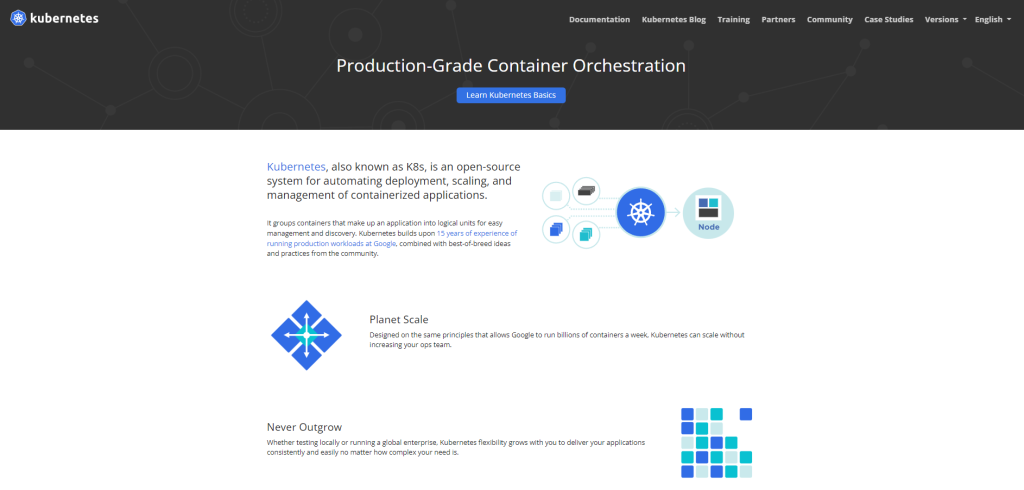
Kubernetes is a system developed by Google to manage deployment automation and containerized services. It’s built to handle and manage containers in the hundreds or thousands, and to optimize how these containers work with each other. Kubernetes does this through nodes that are built for special functions.
These nodes can be categorized into two things: workhorse nodes and head nodes. Workhorse nodes are responsible for anything computational and do all the heavy lifting. This requires more resources than the head nodes. On the other hand, head nodes are responsible for assigning tasks and receiving the final outputs.
In short, Kubernetes is made to manage and optimize the entire workflow of containers with each other, and this makes it very different from Docker.
What’s the Difference Between Docker and Kubernetes?
Docker is a containerization platform that builds, ships, and runs containers. It’s a platform that lets you build containers just as easily as you can deploy them.
In contrast, Kubernetes shines more on container management and efficiency. It handles lots of containers and optimizes them to work faster through nodes.
After Action Report – Should You Use Docker?
So, should you use Docker for your software? Well, it depends.
Docker generally has the highest impact on your development process if you need to port your environment often. The next biggest consideration for using Docker is if you’re working with large teams that have to continually test your apps back and forth. Teams that work between developers and operations managers who need to run apps on different computers would find Docker a lifesaver.