Creating a WordPress staging site is a vital way to test out changes to a website without risking any impact on your live site.
Whether you’re making changes to your theme, testing out a new plugin or configuration, or adding custom code, it is extremely easy for unexpected conflicts or misconfigurations to wreak havoc on a website, which can seriously impact your users’ experience.
Creating a copy of your website and running it in a testing environment is a safe way to test any changes you want to make to your live site without risking anything.
This tutorial will walk you through creating and using the One-Click WordPress staging site functionality on RunCloud without installing unnecessary WordPress plugins.
Let’s get started!
Creating a WordPress Staging Site
This section will explain how to create a WordPress Staging site without installing any additional WordPress plugins. Before you get started, make sure that you have a WordPress website connected to your RunCloud account.
Step 1: Accessing the WordPress Staging Menu
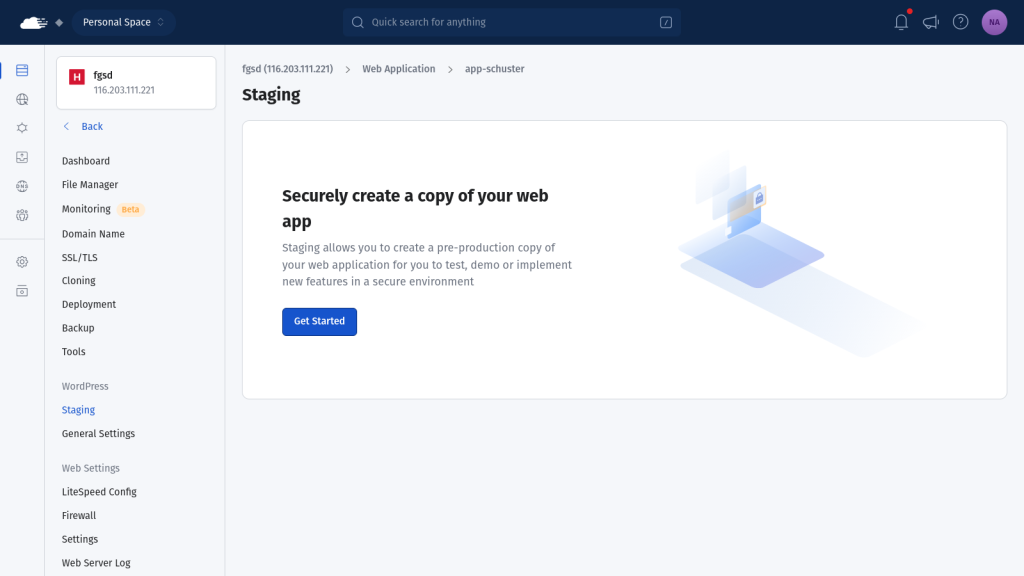
Open your RunCloud dashboard and navigate to the WordPress website where you want to create a staging environment. On this screen, click the “Staging” button in the left menu, which will bring up a new screen.
Click on “Get Started” to proceed with the process.
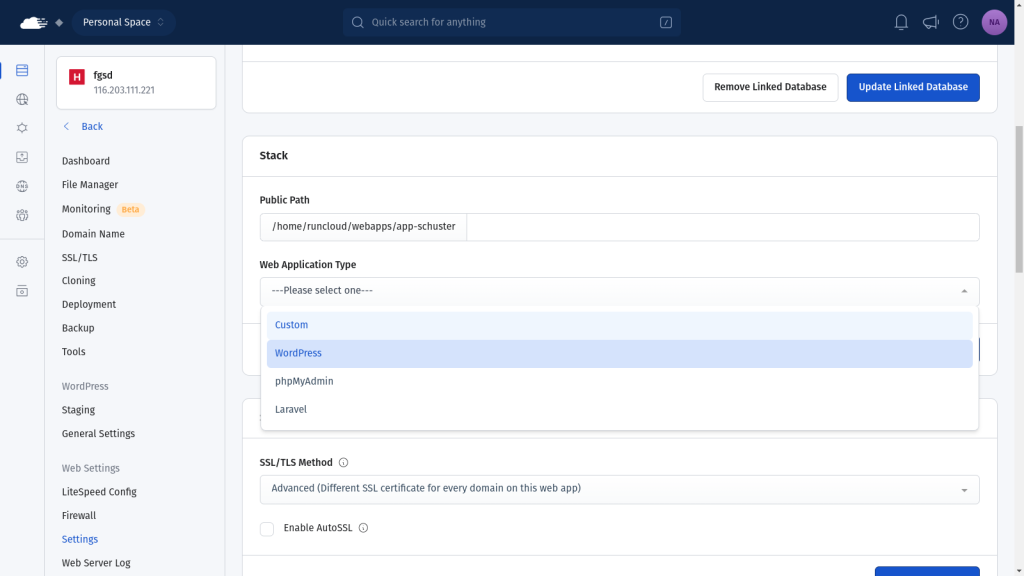
If you have installed WordPress manually, you might not see the staging button in the left menu. In this case, go to your web application’s “Settings” page and scroll to the “Stack” sub-section. Click on the “Web Application Type” dropdown menu and select WordPress.
Once you save the changes and refresh the page, you will see the staging button in the left menu.
Step 2: Creating Your WordPress Staging Site
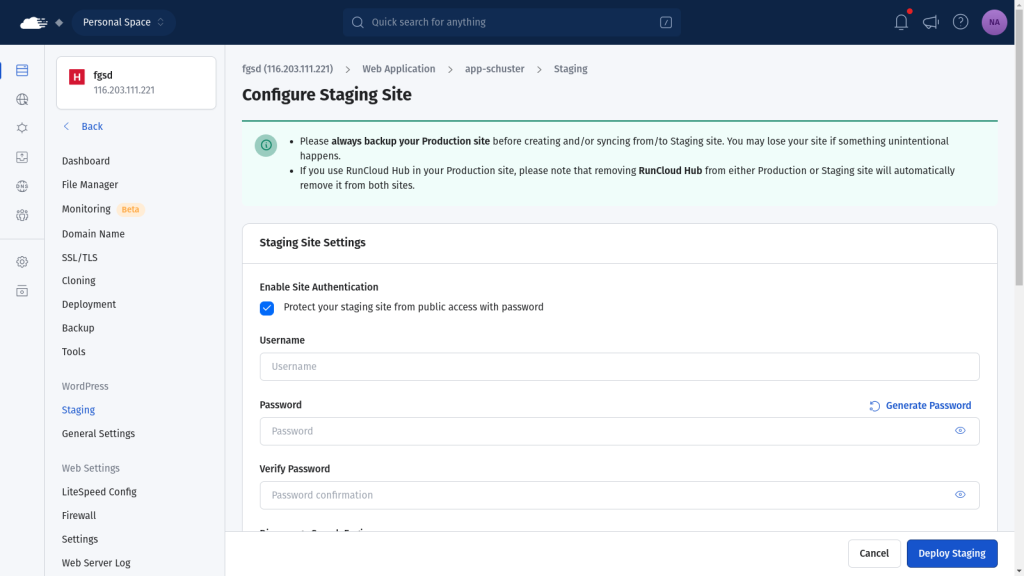
In the Staging menu, you’ll see several options to create and configure your staging site.
First, you need to configure if you want to enable HTTP authentication for this site. Since the staging site is not meant for the public, enabling this functionality is a good idea.
Check the box next to Site Authentication and enter a username and password in the provided fields to enable this functionality.
Next, you must choose between using RunCloud’s free domain or your own domain/subdomain. RunCloud’s free domain is faster to set up and instantly accessible. A custom domain requires additional DNS configuration and propagation time. No matter what you choose, you always have the option to change your domain name later.
Finally, you should remember that search engines penalize sites if they post duplicate content. Since the staging site is a clone of the original site, enabling “Discourage Search Engine” is always recommended to prevent search engines from indexing your staging site.
Once you have configured the required settings, click the “Deploy Staging” button to start the creation process.
Step 3: Accessing Your WordPress Staging Site
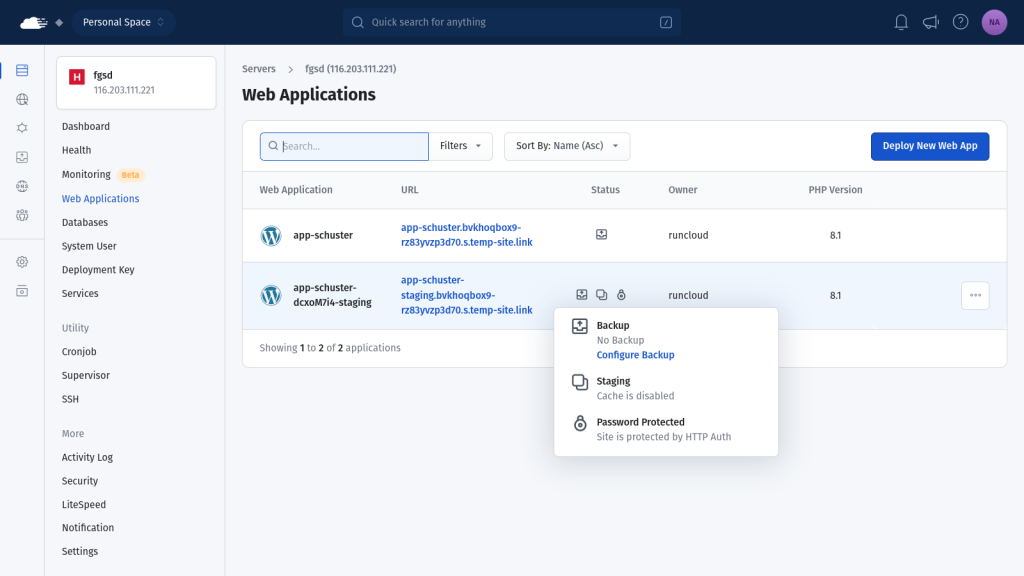
Once the staging site is created, you’ll see a new web application in your RunCloud dashboard. In the following screenshot, we can see that the server contains two applications, and the staging site has a special ‘copy’ symbol next to its name to indicate that it is a staging site.
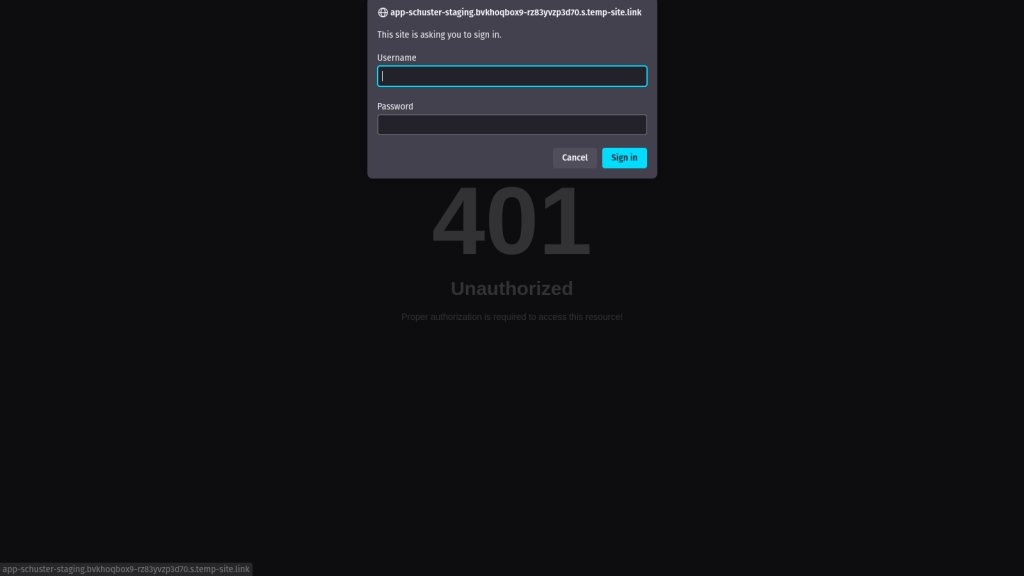
Click on the URL next to your site name to visit your staging site. If you enabled Site Authentication, enter the username and password you configured in the previous step. If a user doesn’t know the username and password, they will be shown a 401 unauthorized error message.
Step 4: Managing Your WordPress Staging Site
Once you are logged in to your staging site, you can treat it as a standard web application. You can change settings, test new themes, try out plugins, and make any other changes without affecting your production site.
If something goes wrong, you can either revert your changes by moving data from the production site to the staging site (as explained below) or delete the staging site and create a fresh copy with only a few clicks.
Step 5: Syncing Between WordPress Staging and Production
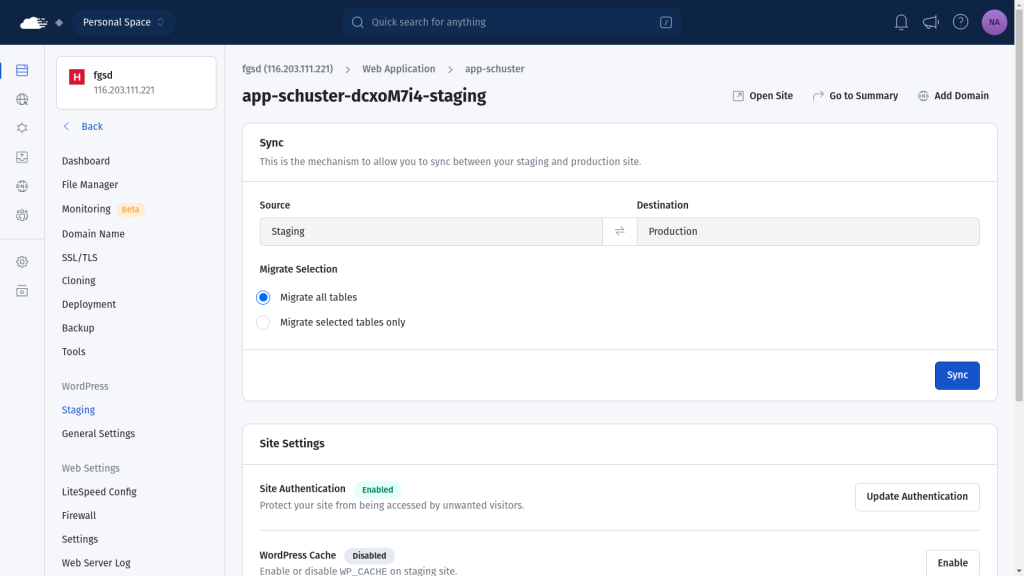
After you have tested the changes on your staging site, you can directly apply them on your live site without manually implementing every change. RunCloud provides a special Sync functionality that allows you to move data from the staging site to the production site without any headaches.
Here’s how you can move data between sites:
Navigate to the Sync/Merge options in the Staging menu.
Choose the sync direction: Click the arrows to flip the transfer direction.
Production to Staging: Update staging with the latest production data.
Staging to Production: Apply tested changes to your live site.
Select sync options:
Full sync
Migrate selected database tables only
Click the “Sync” button and confirm your choices in the popup.
Final Thoughts on WordPress Staging
In this post, we have highlighted the importance of creating a staging environment for your business-critical websites and shared steps for creating a staging environment for WordPress.
Creating and managing multiple sites, each with its own staging environment, can be challenging, but it doesn’t have to be. RunCloud offers a comprehensive solution for managing cloud servers with ease and efficiency.
RunCloud’s user-friendly interface makes it a powerful tool for developers looking to streamline their server management processes. Whether managing a single site or multiple projects, RunCloud provides the tools you need to deploy, manage, and scale your web applications confidently.
Try RunCloud today and experience the ease of creating and managing staging environments.
Of the top ten million websites, over 41% use WordPress.
Every single minute, there are 90,000 attacks on WordPress sites.
Every single week Google blacklists 70,000 websites due to security issues.
If you’re running a WordPress website, these statistics make startling reading and underline just how critical it is to take WordPress security seriously and keep up to date with the latest advice.
Fortunately, that’s what we’re going to do right now.
Securing your WordPress website is essential, but how can you achieve this effectively? This is where WordPress security plugins come in.
There are several WordPress security plugins that you can install to help you protect your website from online threats. Choosing a good plugin will keep your WordPress website safe and protect it from spammers and malware.
Let’s examine why it is crucial to secure your WordPress site, what you can do to keep it safe, and six of the best WordPress security plugins that will keep your site safe.
Do You Need To Secure Your WordPress Site?
No matter what the size of your site is: yes.
Keeping your website secure is vital. Spammers don’t see whether your site is big or small – they’re just looking for a way to infect your site with viruses and malware. Weekly, about 18 million websites get infected with malware. While the WordPress core software is very secure (as long as you keep it fully up to date), the themes and plugins you use can leave your website vulnerable.
If a virus, malware, or spammer successfully attacks your website, then it can:
Negatively impact your Google ranking
Access all your important and private information
Damage your website and brand reputation
Do severe damage to your online business
But if you install a security plugin on your website, then not only will it protect your website and keep it safe, but it will also:
Keep all your confidential website files safe
Detect and inform you whenever there is a security threat
A good WordPress security plugin should contain the following characteristics:
Real-time Malware Analysis: Google blacklists websites when its crawlers detect something harmful to the user, such as distributing malware. Many security plugins use heuristic analysis and signature-based detection to identify and eradicate malicious code.
Threat Monitoring: Security plugins should conduct continuous, unrestricted security scans and automated clean-up operations, periodically update their rules to adapt to evolving threats, and protect against cyber attacks.
Web Application Firewall (WAF): Many security plugins implement an intelligent traffic analysis system that checks HTTP/HTTPS requests in real time. Advanced plugins often use rule-based filtering and anomaly detection to preemptively block malicious payloads before interacting with WordPress.
Secure Login Authentication: Good WordPress security plugins deploy advanced brute force deterrence mechanisms, such as adaptive challenge-response systems (CAPTCHA) and configurable login attempt rate limiting. These configurations harden your website security and make it difficult for hackers to break in.
Single dashboard for Multi-site Security: WordPress sites often need maintenance and updates, which can take a great deal of time. When running multiple websites, there’s a possibility that you’ll be using a different combination of plugins and themes, which adds even more complexity to maintenance. Modern security plugins can track and update multiple WordPress websites from a single dashboard, which makes this task much more manageable.
Resource-Optimized Security Stack: This stack implements an event-driven architecture and asynchronous processing to deliver comprehensive protection with minimal computational overhead. It offers granular configuration options to fine-tune the balance between security depth and site performance.
Vulnerability Management: Good security plugins can execute automated vulnerability scans across the WordPress core, themes, and plugins. The scan findings are cross-referenced with real-time threat intelligence databases. If a vulnerability is detected, the plugin should notify the site administrator and take steps to prevent it from being exploited.
Let’s take a deep dive and examine some of the best WordPress security plugins you should seriously consider for your website.
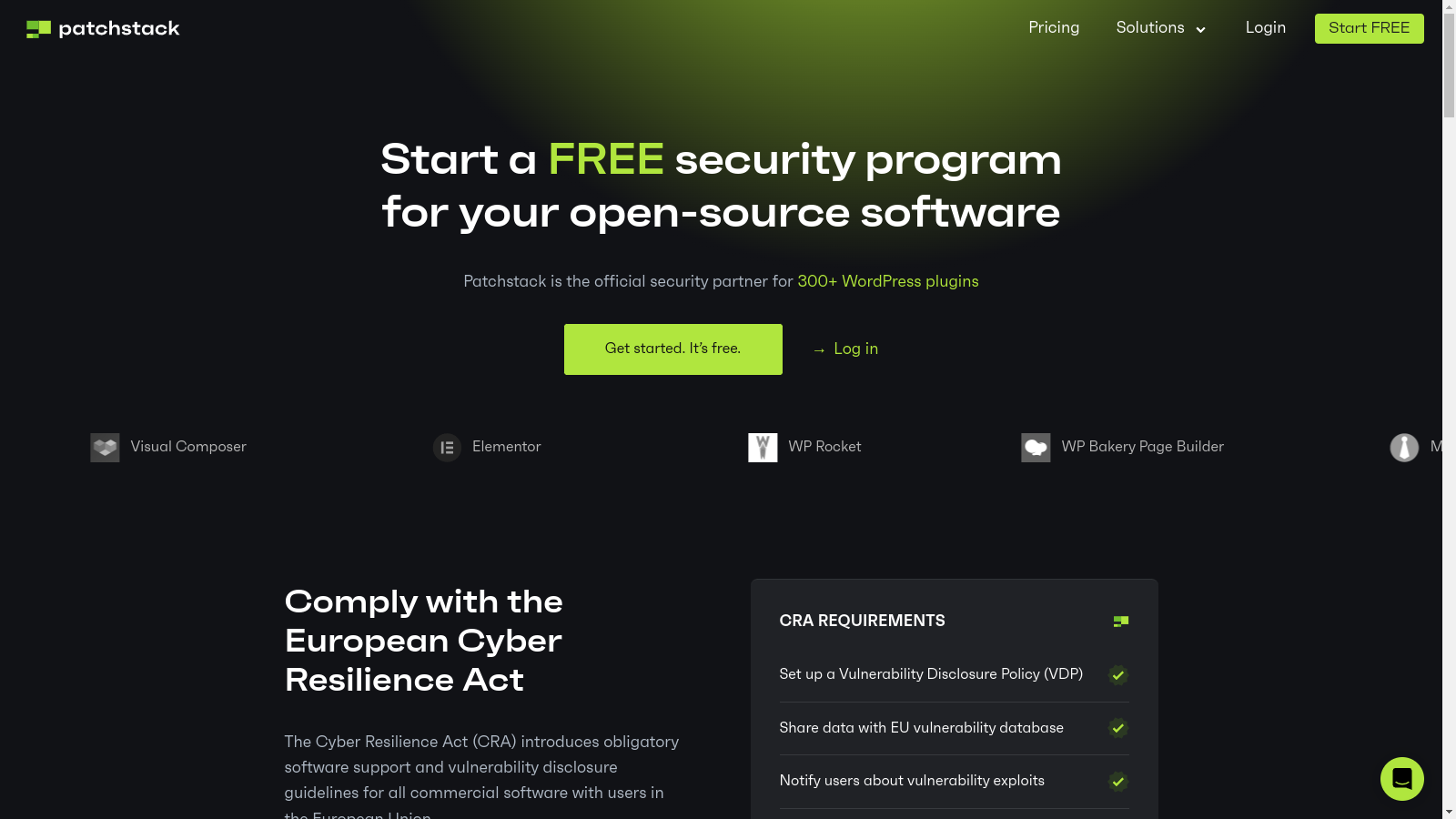
Patchstack
Patchstack is one of the most trusted WordPress security plugins. It sets itself apart by tackling vulnerabilities head-on rather than just reacting to malware. Patchstack actively tracks and maintains a database of vulnerabilities, keeping you one step ahead of hackers.
One of its key strengths is its ability to detect and automatically fix vulnerabilities with “vPatches,” essentially patching vulnerabilities without requiring a plugin update. This is a game-changer for website owners as it eliminates the need to wait for developers to release updates and provides immediate protection.
What sets Patchstack apart is its dedication to open-source security. It is trusted by reputable white hat hackers in the WordPress community, and it partners with leading security researchers, hosting companies, and developers to ensure the entire WordPress ecosystem remains secure.
Patchstack also runs a managed Vulnerability Disclosure Program (mVDP), which helps developers comply with emerging security regulations and provides a standardized approach for handling vulnerability reports.
Pricing:
Patchstack offers three plans designed to cater to various user needs, from individual website owners to developers and businesses managing large website portfolios.
The “Community” plan is a free plan that offers basic vulnerability monitoring with a 48-hour early warning. This lets users understand Patchstack’s capabilities and assess its value before committing to a paid plan. However, key features such as vPatches and instant mitigation require the pay-per-site protection add-on, which costs $5/website/mo.
The “Developer” plan is priced at $89 per month (billed annually) and is specifically tailored for professionals building websites. It includes unlimited website protection, vulnerability detection, real-time protection, and software management, providing a robust and secure environment for development work.
The “Business” tier, priced at $459 per month (billed annually), is best suited for businesses managing a large volume of websites. It offers protection for up to 500 websites and enhanced features like vulnerability detection, real-time protection, and software management. This tier is ideal for businesses that need to deploy security at scale and ensure consistent protection across their entire online presence.
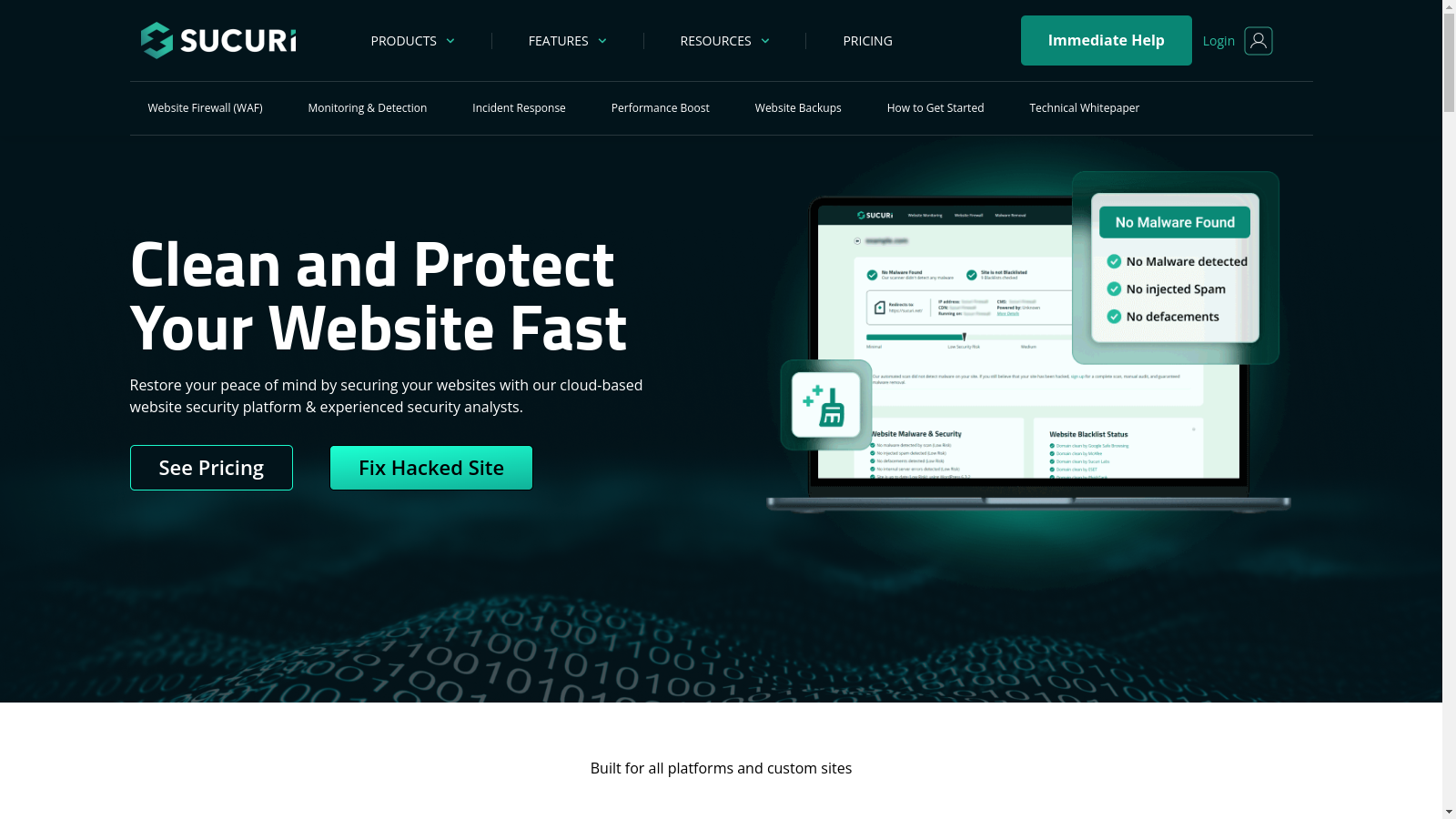
Sucuri
Sucuri is one of the most popular security plugins for WordPress and is trusted by over 800,000 websites. It offers an advanced WAF that can easily protect websites from DDoS attacks and other malicious threats. Moreover, Sucuri’s WAF blocks attacks and optimizes your website’s performance by reducing load times and enhancing availability.
It also features Security Activity Auditing, which meticulously tracks and logs significant security events and provides a detailed historical record of changes and potential threats. Additionally, you can use File Integrity Monitoring to ensure your website’s files remain untouched by unauthorized modifications. This can also alert you to potential malware or hacking attempts.
Sucuri also implements effective security hardening and strengthens your WordPress site’s security by applying recommended configurations. Finally, in the unfortunate event of a security breach, Sucuri provides post-hack security actions and offers guidance and tools to help clean up your website and restore its integrity.
Pricing:
The Basic plan costs $199.99/year and is suitable for bloggers and small site owners who need occasional malware cleanup and continuous security scans. The pro plan costs $299.99/year and offers advanced support for SMBs.
The Business Platform, priced at $499.99/year, prioritizes speed with rapid malware cleanup and frequent scans for vulnerability detection. Additionally, the Junior Dev subscription, priced at $999.98/year, caters to freelancers, web professionals, and agencies managing 2-5 websites.
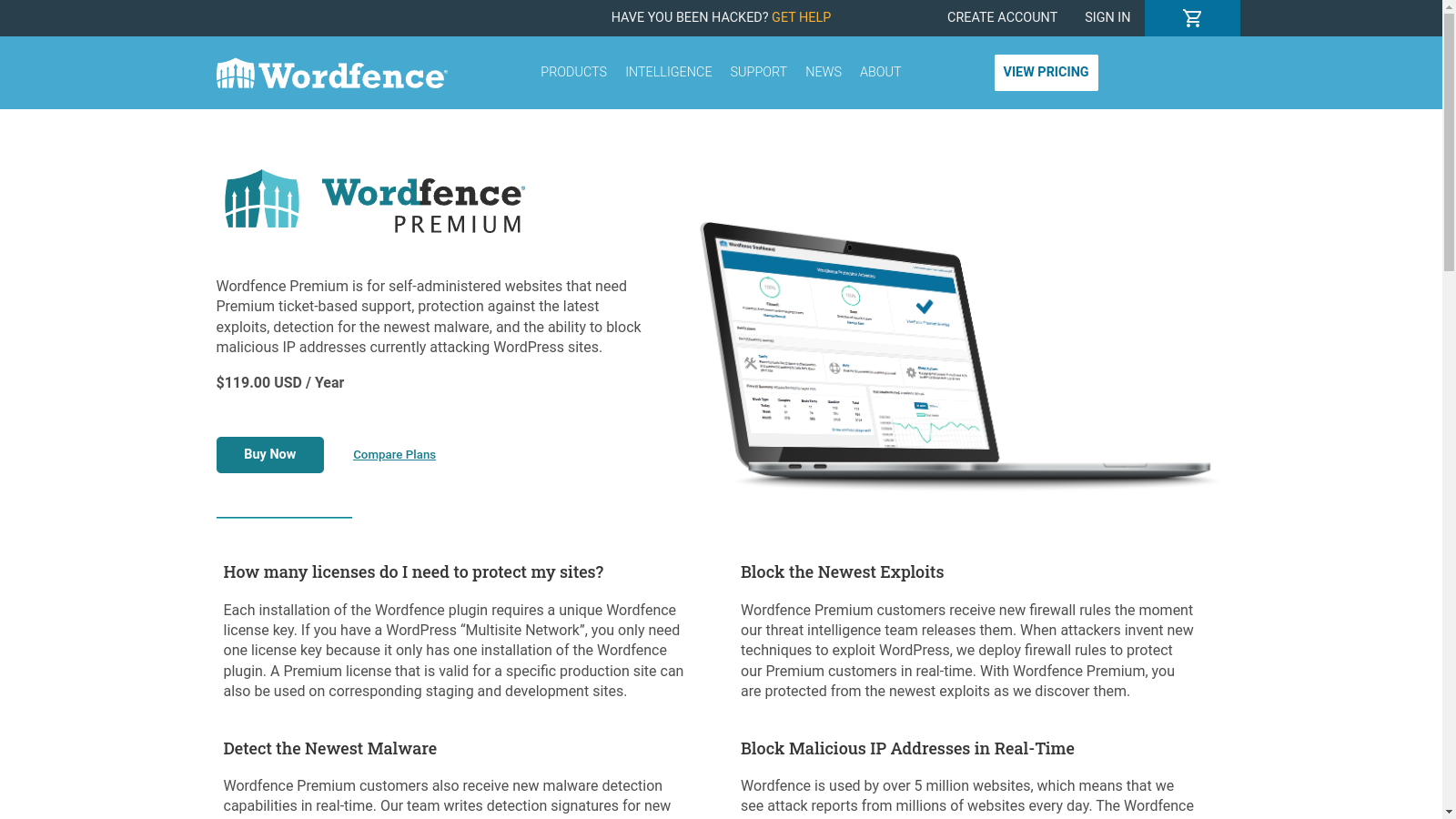
Wordfence is a robust and comprehensive security solution for WordPress websites. It has over 5 million active installs on WordPress.org and has earned its reputation as the most popular firewall and security scanner. It offers a robust firewall, malware scanner, and login security features, all powered by its Threat Defense Feed, which ensures constant updates for maximum protection.
Wordfence offers advanced features such as real-time firewall rules and malware signatures, a real-time IP blocklist, and a powerful central management dashboard for multiple sites. With its user-friendly interface, detailed security assessments, and ongoing updates, Wordfence is an invaluable tool for any WordPress website owner seeking to safeguard their online presence.
Pricing:
Wordfence offers a free version that provides essential security features such as a firewall and malware scanner, but with a 30-day update delay. For enhanced protection, you can use the $119/year “Industry Leading Firewall” plan, which offers real-time updates, country blocking, a dynamically updated IP blocklist, and premium customer support.
The $490/year “Real-Time Threat Intelligence” plan is suitable for busy business owners as it offers managed installation, configuration, optimization, and monitoring, including unlimited incident response. For mission-critical websites that demand the highest level of security, the $950/year plan provides 24/7 incident response with a 1-hour response time and a 24-hour resolution guarantee.
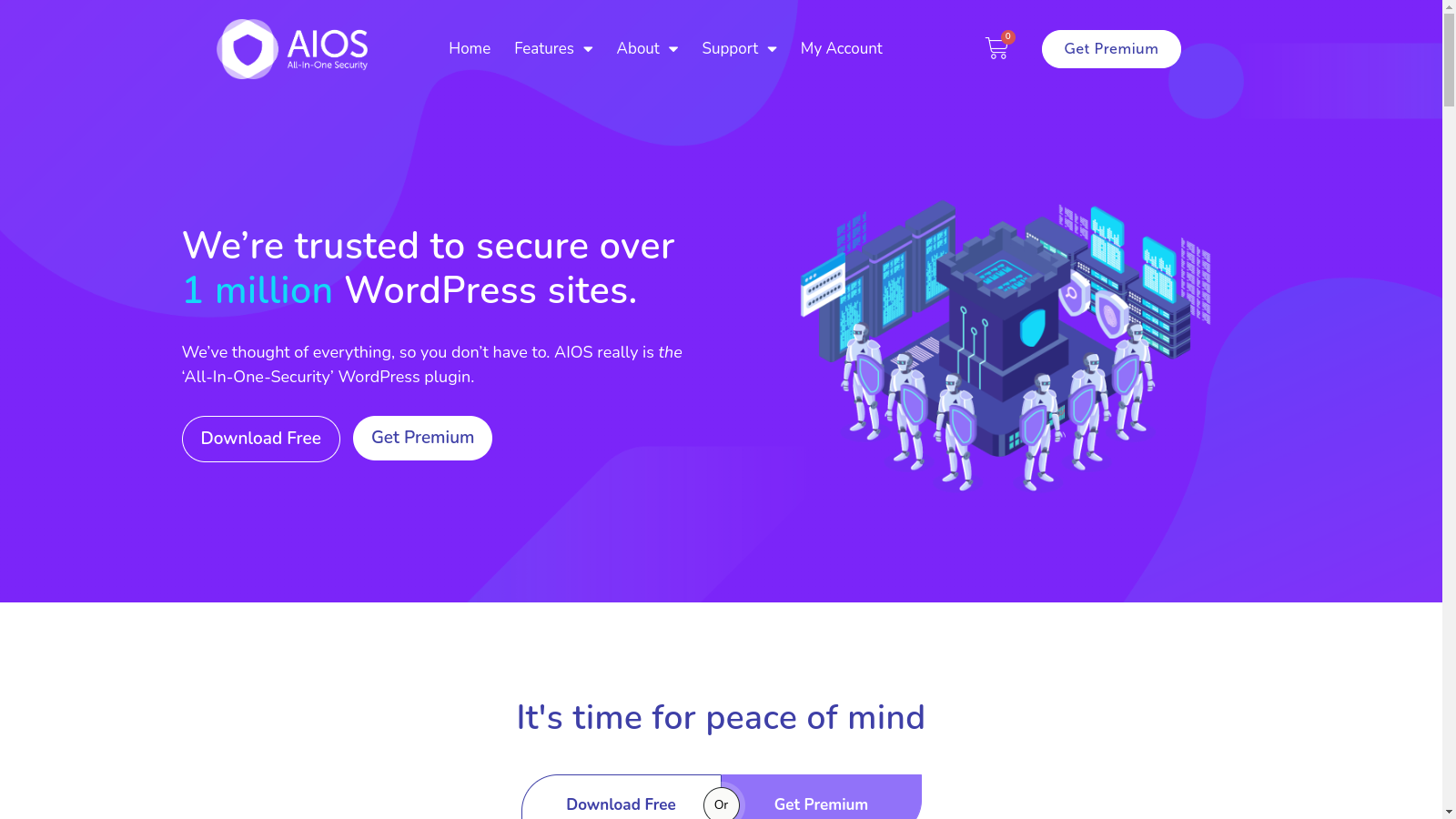
All-In-One Security (AIOS), is a user-friendly WordPress security plugin that packs a punch. It provides a comprehensive suite of features, many of which are free, making it accessible to a wide range of users.
AIOS protects your website from brute force attacks and bots with its Login Security suite, while its Web Application Firewall shields you from malicious traffic and exploits. The plugin can enhance your site’s security by preventing spam comments and content theft through features such as iFrame prevention and copywriting protection.
Its flexible Two-Factor Authentication (TFA) offers granular control for enhanced security. For example, you can configure TFA to be mandatory for specific user roles, require it after a set period, or adjust how often it’s needed for trusted devices. The plugin also incorporates anti-bot protection, allows you to customize the TFA design, and provides emergency codes for access when your device is lost.
Additionally, AIOS Premium’s Smart 404 Blocking automatically and permanently blocks bots that generate excessive 404 errors, protecting your website from malicious activity. You can monitor these blocks through handy charts that provide insights into the frequency and origin of 404 errors.
Pricing:
As the name suggests, the free plan is completely free to use. However, you can opt for a premium plan, which starts at $70.00/year and offers protection for two websites.
Solid Security
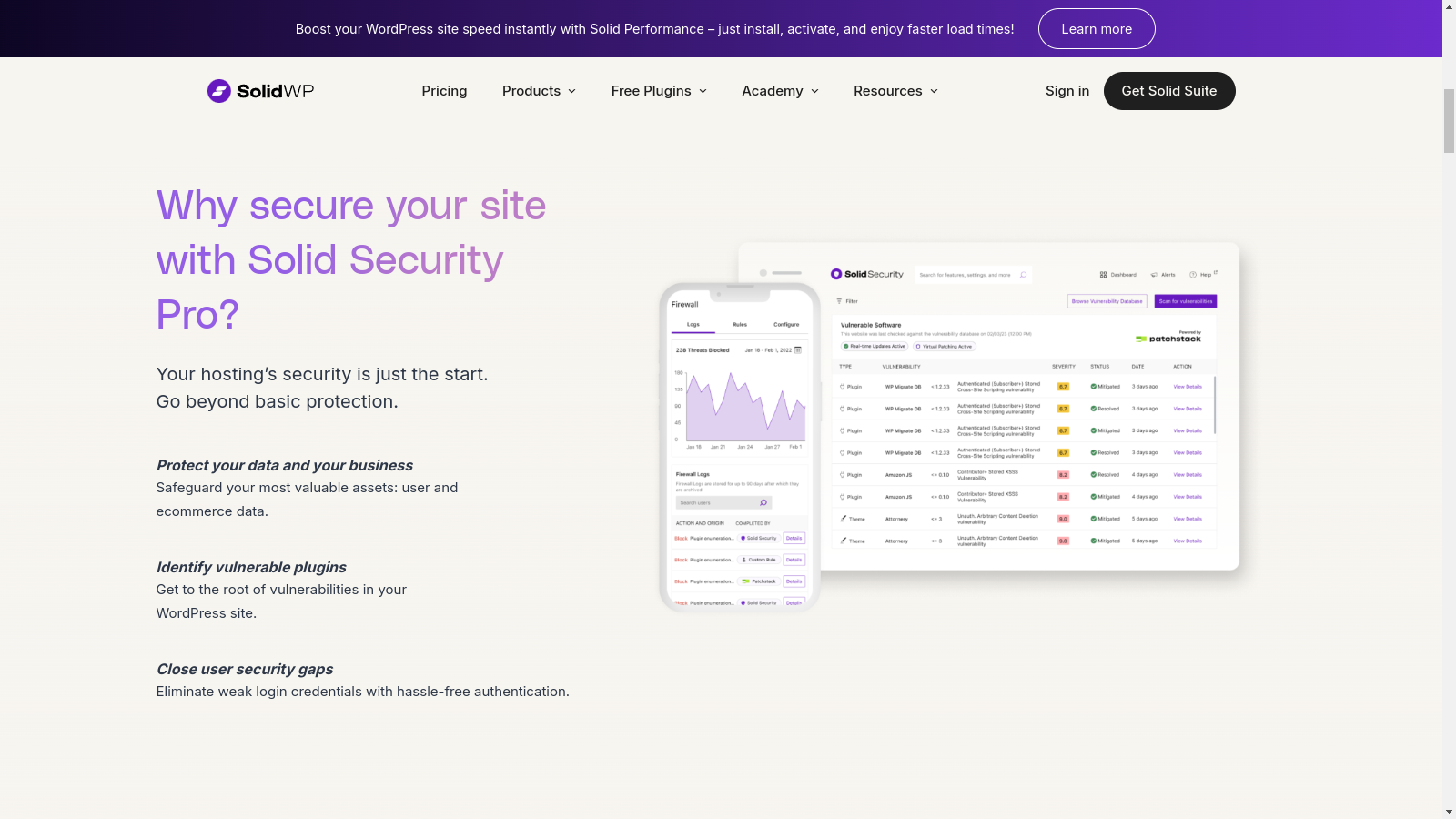
Solid Security Pro is a robust WordPress security plugin that protects your site and business from common vulnerabilities. It offers a comprehensive suite of features such as enhanced login security, vulnerability scanning, and brute force attack prevention. The plugin allows you to set custom login requirements, enforce strong passwords, and enable two-factor authentication or passkeys to eliminate weak credentials.
SolidWP Security goes beyond traditional two-factor authentication methods by embracing cutting-edge technologies for a more seamless and secure login experience. You can log in using Apple Face ID, Apple Touch ID, Windows Hello, or passkey technology (WebAuthn). This flexibility increases security and ensures a smooth login process across different devices.
SolidWP also integrates with popular CAPTCHA providers such as Cloudflare Turnstile, Google reCAPTCHA, and hCaptcha to offer robust protection against automated attacks. You can even utilize YubiKeys or Trusted Platform Module (TPM) devices for enhanced physical security. This comprehensive approach to two-factor authentication ensures that your website remains secure while providing users with convenient and reliable access options.
Pricing:
Solid Security Pro starts at $99 per year for a single site. However, there are discounts for bulk purchases. You can choose a plan that suits your budget and the number of websites you need to protect.
Which WordPress Security Plugin Is Right For You?
It’s never going to be a one-solution-fits-all when it comes to security. But having said that, it doesn’t matter whether your website is a small business site run by you alone or a medium or even large business with hundreds of employees. Security is a non-negotiable must.
A free plugin such as All-In-One Security or Wordfence might be sufficient for basic protection if you’re a small business owner or individual managing a single website. However, if you manage multiple websites or require more advanced features like real-time protection, vulnerability patching, and managed support, paid plugins such as Patchstack or Solid Security Pro offer comprehensive solutions.
Ultimately, consider your website’s size, traffic volume, and the level of security you require to determine the ideal plugin for your needs.
Let us know in the comments below if you have any questions or recommendations, and which security plugin you prefer!
Final Thoughts
We hope this guide has given you a clearer understanding of the various WordPress security plugins available and helped you identify the best fit for your website. Remember, choosing the right plugin is only the first step. Securing your WordPress website goes beyond a single plugin; it requires a holistic approach.
One crucial element of WordPress security often overlooked is choosing a secure hosting provider.
RunCloud is the best WordPress hosting provider because it offers advanced security features out of the box. When you manage your WordPress website with RunCloud, you can use robust solutions such as the ModSecurity firewall, Fail2ban, and access control lists in Redis without getting into technical details.
Ready to take your WordPress security to the next level? Sign up for RunCloud today and experience the difference a genuinely secure hosting platform can make.
FAQs on WordPress Plugin Security
What are the top WordPress security plugins recommended for 2024?
The top WordPress security plugins for 2024 include Patchstack, Sucuri, All In One WP Security. These plugins offer comprehensive security features and have consistently received positive reviews from users and experts.
How do security plugins protect my WordPress site?
Security plugins protect your WordPress site through various methods, including firewalls, login protection, and regular security audits. They also often provide features like two-factor authentication, file integrity monitoring, and protection against brute force attacks.
Are security plugins compatible with the latest version of WordPress?
Yes, reputable security plugins are regularly updated to maintain compatibility with the latest WordPress versions. It’s crucial to keep WordPress and your security plugins up-to-date to ensure optimal protection and compatibility.
Do I need to use all six plugins, or is one sufficient for adequate security?
Using one comprehensive security plugin is sufficient for adequate protection. Using multiple security plugins can lead to conflicts and potentially slow down your site, so choosing one robust solution that meets your specific needs is often better.
Are there any free options among the best WordPress security plugins?
Yes, many top WordPress security plugins offer free versions with basic features. For example, Patchstack, Sucuri, and All In One WP Security have free versions, though premium versions typically offer more advanced features.
How often should I update these security plugins?
You should update your security plugins as soon as new versions are released, typically every few weeks to months. Enabling automatic updates can protect you against the latest security threats.
Can security plugins slow down my WordPress site’s performance?
While security plugins can potentially impact site performance, most modern security plugins are optimized to minimize their impact. The slight performance trade-off generally outweighs the security benefits, but you can often adjust settings to balance security and performance needs.